> ## Documentation Index
> Fetch the complete documentation index at: https://docs.tangoanalytics.com/llms.txt
> Use this file to discover all available pages before exploring further.

# Access points

This article explains the steps required to collect occupancy data from wireless access points by configuring them in Locatee Admin.

> 📘 Have you enabled wireless data collection?
>
> Measuring access point information requires the configuration of Locatee-specific credentials on the network hardware.
>
> Consult the following articles for [Cisco](https://docs.locatee.ch/docs/cisco-snmp-configuration) or [Aruba](https://docs.locatee.ch/docs/aruba-snmp-configuration), or contact the Locatee Service Desk ([support@locatee.com](mailto:support@locatee.com)) for more information.

## Add a new access point

1. Go to **Admin → Buildings → Access Points**
2. Click **New Access Point** and fill in the fields:
   1. **Model**: Model of the device, e.g. *air-ap3802i-b-k9*
   2. **Address**: IP address
   3. **Name**
   4. **MAC Address**: Base Radio MAC address
   5. **Enabled**: Yes
3. If a floor plan is present, place the access point on the map.

4) Click **Create** to confirm.
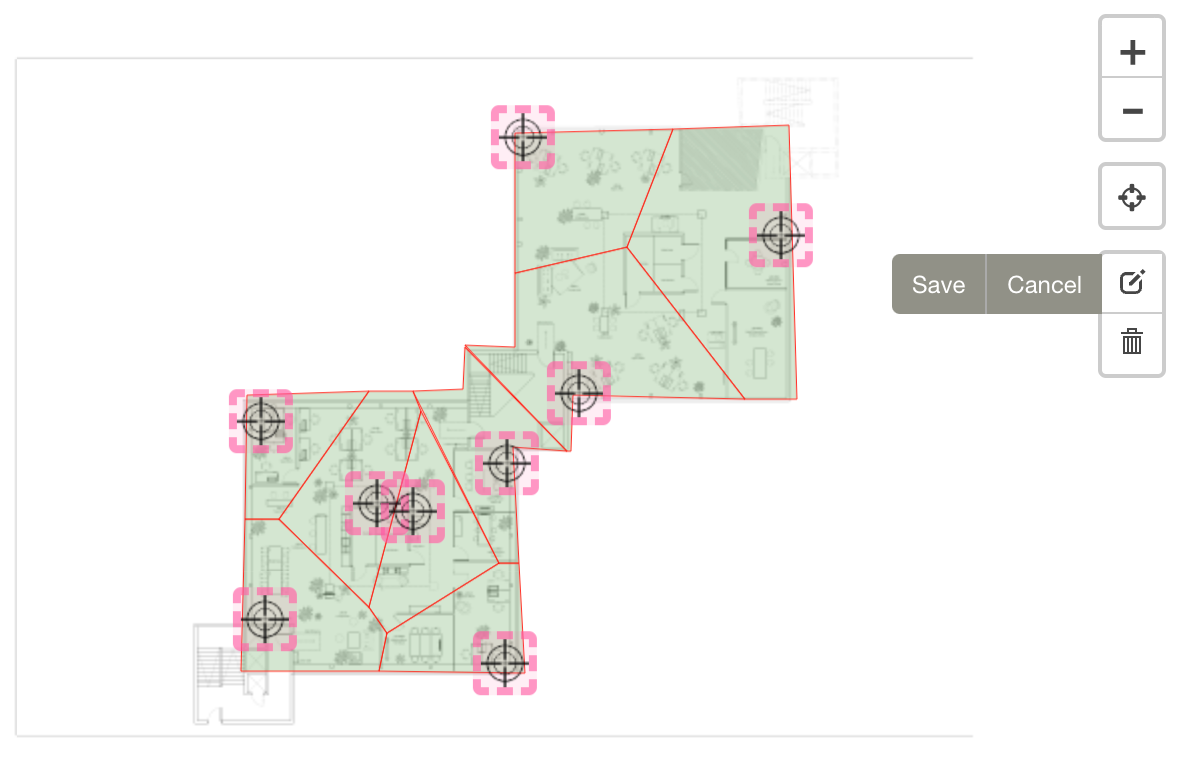
5) Once all access points have been created and positioned, click the **Tessellate Floor** button to automatically configure the access point tessellation zones:

Correctly set access point tessellation zones

***

## Import access points via CSV

Locatee supports the import of access points in bulk via a prepared CSV file.

### File preparation

<thead>
  <tr>
    <th>
      Column name
    </th>

    <th>
      Format
    </th>

    <th>
      Comments
    </th>
  </tr>
</thead>

<tbody>
  <tr>
    <td>
      Model
    </td>

    <td>
      String
    </td>

    <td>
      Model of the device, e.g. *air-ap3802i-b-k9*
    </td>
  </tr>

  <tr>
    <td>
      Address **(required)**
    </td>

    <td>
      String
    </td>

    <td>
      Formatted as `XXX.XXX.XXX.XXX`
    </td>
  </tr>

  <tr>
    <td>
      Name **(required)**
    </td>

    <td>
      String
    </td>

    <td>
      Must be unique
    </td>
  </tr>

  <tr>
    <td>
      Mac Address **(required)**
    </td>

    <td>
      String
    </td>

    <td>
      Must be unique, accepted formats: `aa:bb:cc:dd:ee:ff`\
      `aabbccddeeff`\
      `aabb.ccdd.eeff`
    </td>
  </tr>

  <tr>
    <td>
      X
    </td>

    <td>
      Float
    </td>

    <td>
      X-coordinate of access point on the map *(set to 0 if not already positioned in Locatee)*
    </td>
  </tr>

  <tr>
    <td>
      Y
    </td>

    <td>
      Float
    </td>

    <td>
      Y-coordinate of access point on the map *(set to 0 if not already positioned in Locatee)*
    </td>
  </tr>

  <tr>
    <td>
      Z
    </td>

    <td>
      Float
    </td>

    <td>
      Z-coordinate of access point on the map *(set to 0 if not already positioned in Locatee)*
    </td>
  </tr>
</tbody>

#### Example

```
Model,Address,Name,Mac Address,X,Y,Z
NETGEAR WAC124,192.150.2.70,f1-ap-01,00:B0:A9:28:D7:31,0,0,0
```

### File import

1. Go to **Admin → Buildings → Access Points**
2. Click the **Import** button and load the prepared file.
3. Position the access points on the map by clicking the **Edit Layers** button:\
   ![](https://files.readme.io/4c6e0e4-image.png)
