

What is desk mapping?
- In order to identify if a workplace is occupied or free, Locatee Analytics reads out the status of user Ethernet ports on local building infrastructure.
- Desk mapping is a setup process which uses your laptop computer as a searching tool to associate a desk with its corresponding network switch port. For example, workplace
WP4.100is connected to switchlan-switch1, portGi1/0/24. - Desk mapping is a process performed on-site in the building by mapping each workplace one by one. The process takes approximately 1 minute per workplace and only needs to happen once.
Preparation checklist
- Prepare a fully charged laptop computer with a working Ethernet port (USB to Ethernet adapters are also supported)
- Ensure that the laptop can connect to the local network via Ethernet. Bring-your-own-device laptops are usually blocked from office networks for security reasons.
- Locatee Analytics is set up for measuring wired switches: https://docs.locatee.ch/docs/network-devices
- Floor plans in Locatee Analytics are up to date.
How to perform desk mapping
Identifying your MAC address
Make sure you are connected to a desk directly via the Ethernet cable. If there is a docking station present, unplug the Ethernet cable from the docking station and plug it into your laptop.Windows
- Open Command Prompt
- Type
ipconfig /all, then hit Enter. - Find the Ethernet adapter, and note the Physical address. It should look like
12-34-56-78-90-AB
MacOS
- Open System Preferences and go to Network
- Find the connected LAN adapter in the list
- Go to Advanced > Hardware, and note the MAC Address. It should look like
12:34:56:78:90:AB
Mapping desks to ports
Open Locatee Analytics. If you have Admin permissions:- Click on the user profile icon, then select Admin
- Go to Buildings and open the desired building
- Click on Desk Mapping:
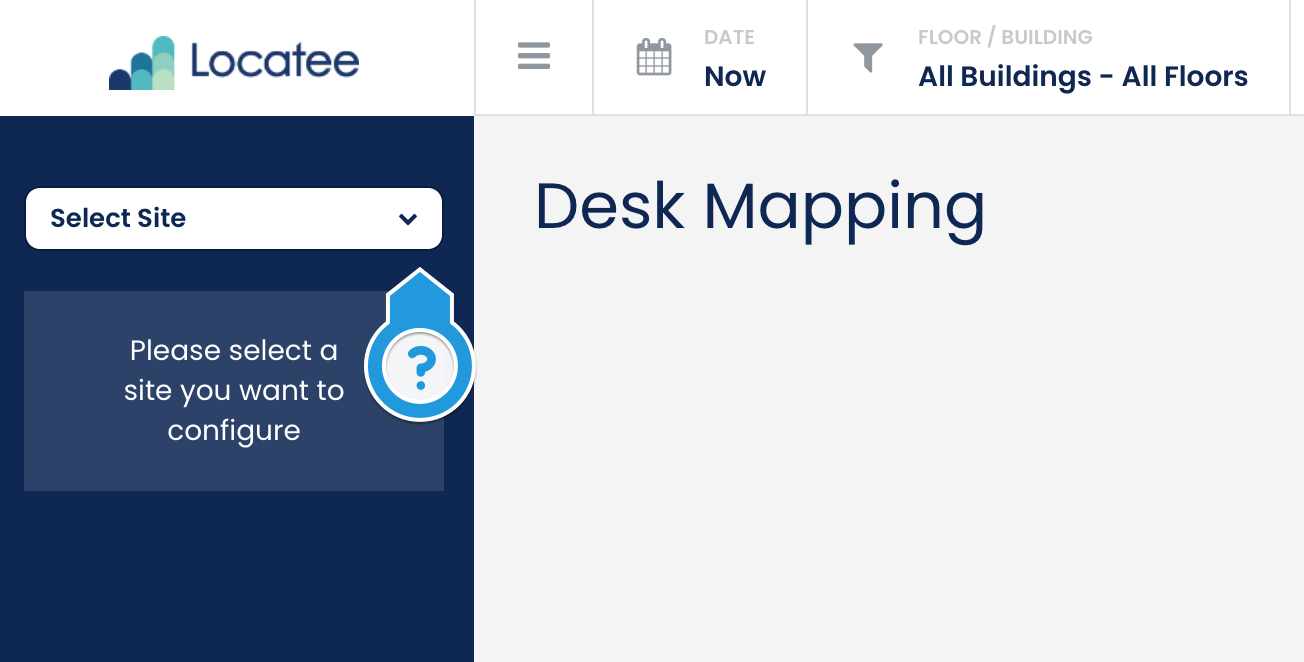 Click on Select Single Floor and select the floor you are currently in:
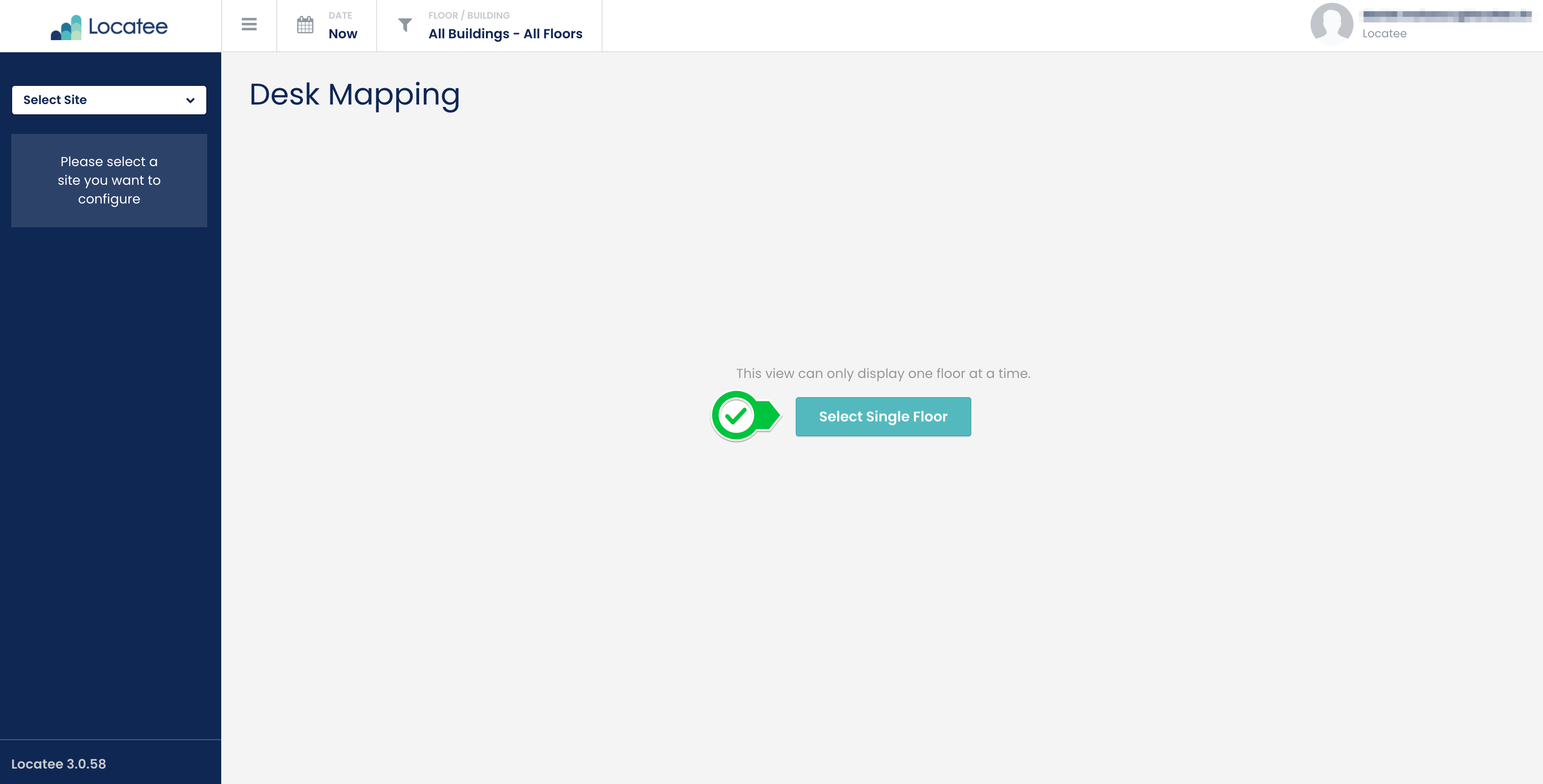 On the floor plan, select the workplace you are currently connected at.
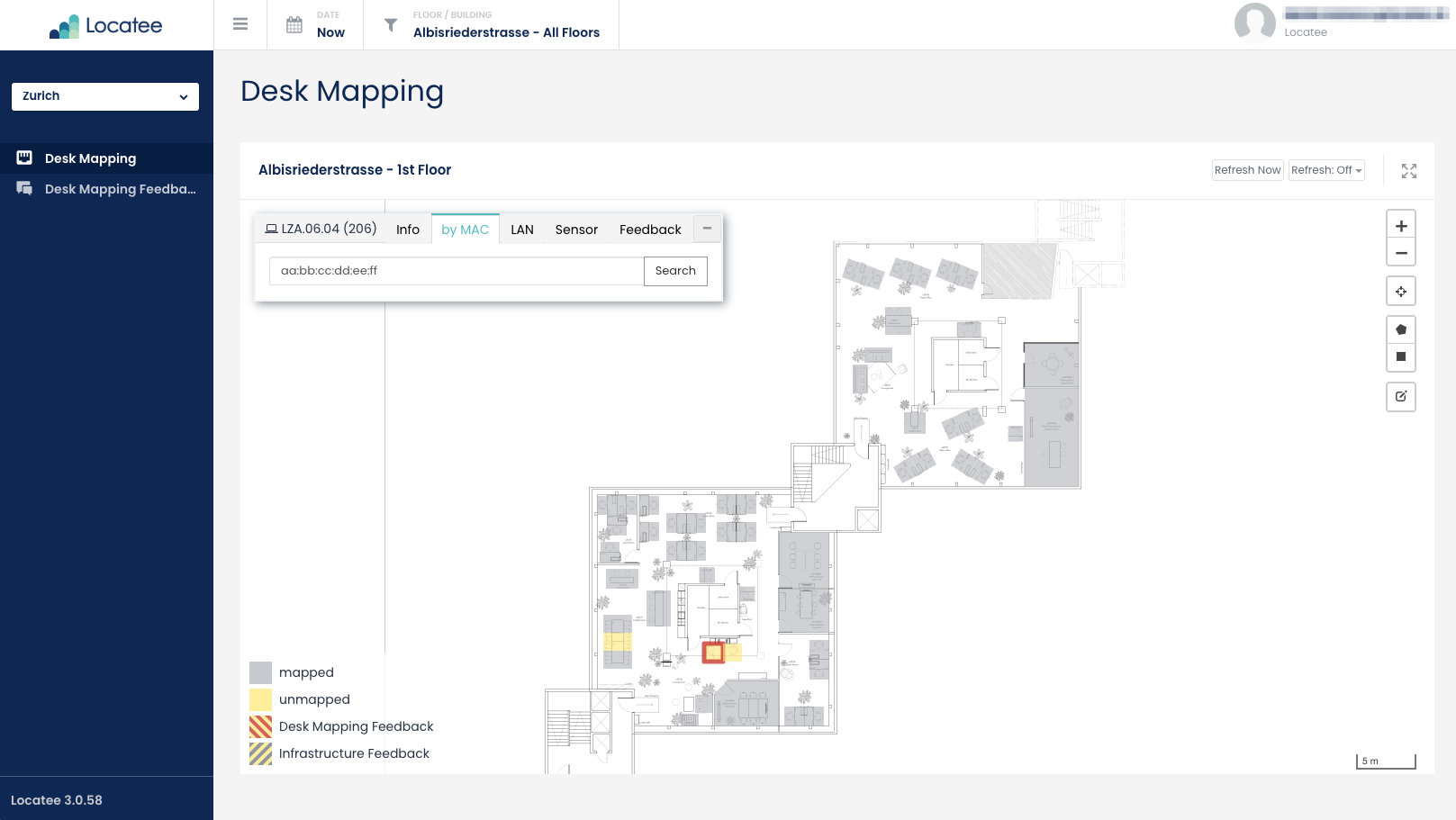
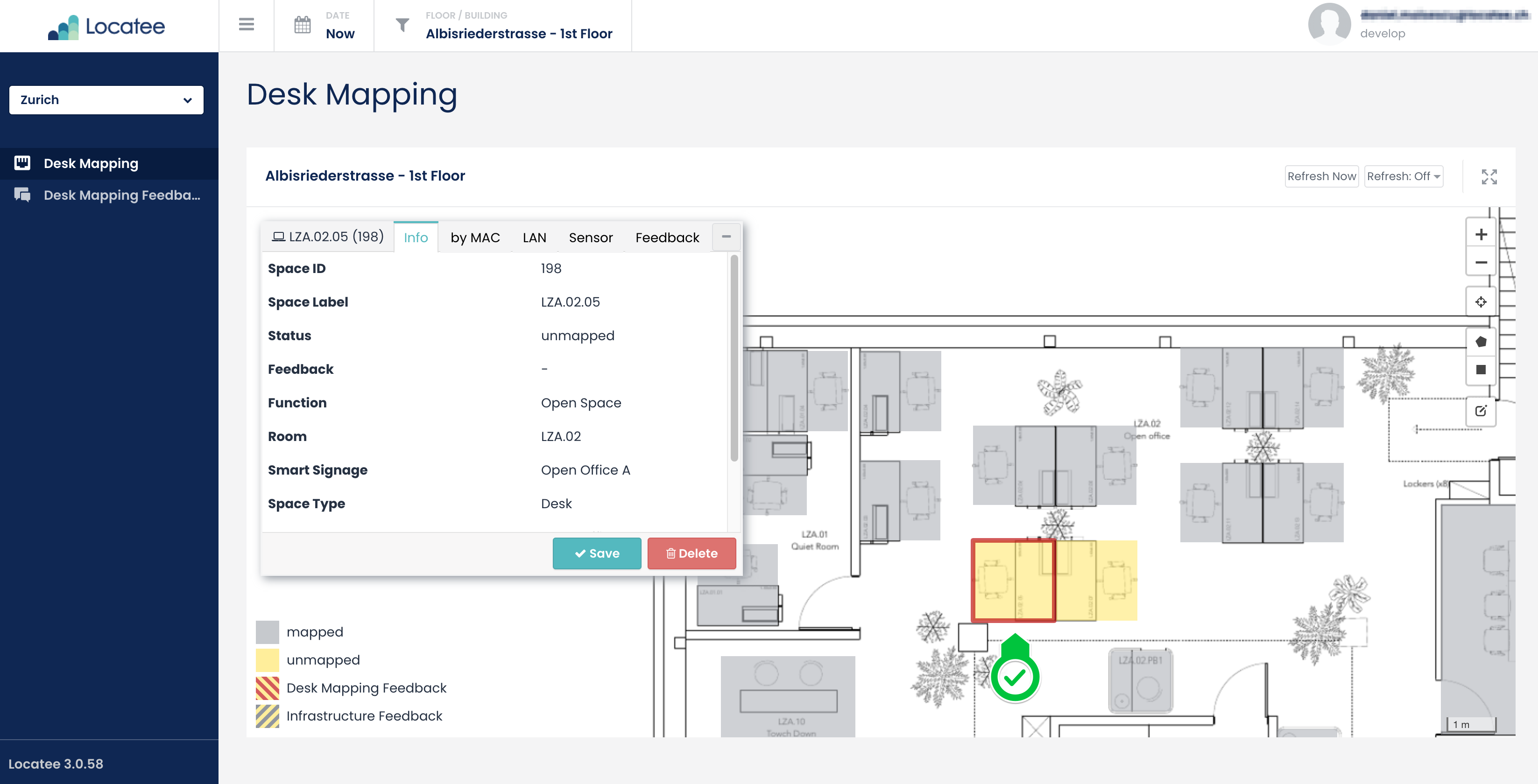 Click the by MAC tab and type in your Ethernet adapter’s MAC address, then click Search:
You will receive a confirmation of the successful mapping. Move on to the next desk and repeat the process until the whole floor is covered. The MAC address stays unchanged.
Click the by MAC tab and type in your Ethernet adapter’s MAC address, then click Search:
You will receive a confirmation of the successful mapping. Move on to the next desk and repeat the process until the whole floor is covered. The MAC address stays unchanged.
Submit feedback
When the workplace does not have a LAN cable or it is not physically present, go to the Feedback tab and record the matching feedback message. Click Save to store the feedback.🚧 Multiple search requests failing? Perform the following checks:Several failed search requests in a row for multiple desks might signal a problem with the switch infrastructure. Contact the Locatee Service Desk (support@locatee.com), mentioning the building and workstation name in your report.
- Is the Wi-Fi connection disabled on the laptop?
- Are you using the MAC address of the Ethernet adapter, or if mapping via a docking station, the MAC address of the docking station?
- Do you get the same result if you map the same desk again 30 seconds later?