

Introduction
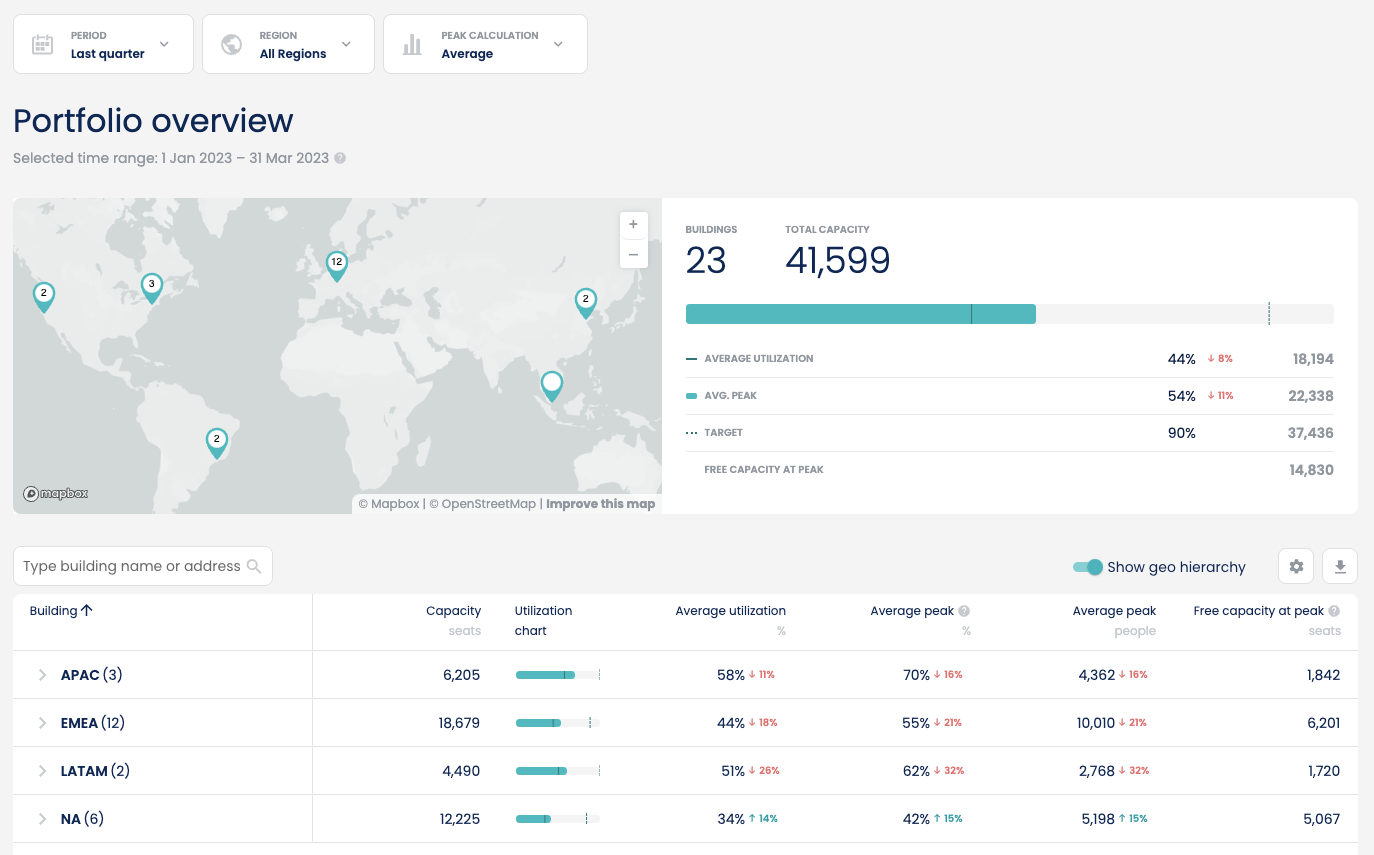
The portfolio overview gives users all the key aggregated metrics for an entire portfolio of sites and buildings in a single view. Portfolio overview allows users to quickly and easily compare key metrics for their buildings around the world and to filter them by regions for conducting regional comparisons.World Map

- The world map allows users to view the locations for each building in their portfolio.
- This list can be filtered down using the global filters to specific regions.
- Note that buildings must have unique addresses to be displayed on the map. If multiple buildings (e.g. as part of a site (campus) are set up with the exact same address, only one of them will be displayed on the map.
World Map Tooltip
Clicking on a building on the world map shows the key metrics for that building.Portfolio Summary
Buildings and Total capacity
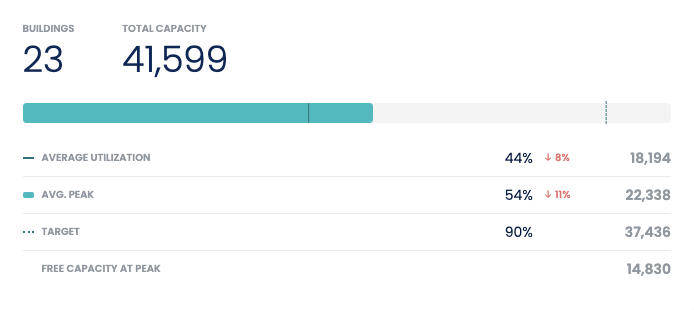
- Displays the total number of buildings along with the sum of their respective capacities.
- These totals are affected by the region filter selected in the global filters, by default all buildings in the portfolio will be shown.
Search function
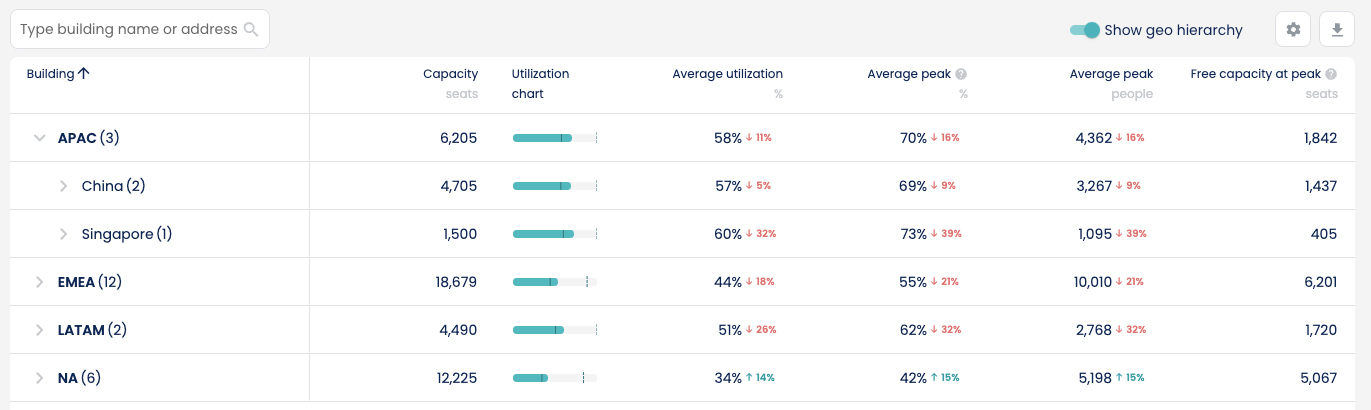
- The search function allows users to filter the list of buildings to those matching their search query.
- The search function searches through building names and building addresses as well as regional groupings (e.g. EMEA, Switzerland)
- Some environments prefix an internal code to their building names to enable them to search via such codes as a way to find their buildings in a way that is easier to them.
Show geo hierarchy toggle
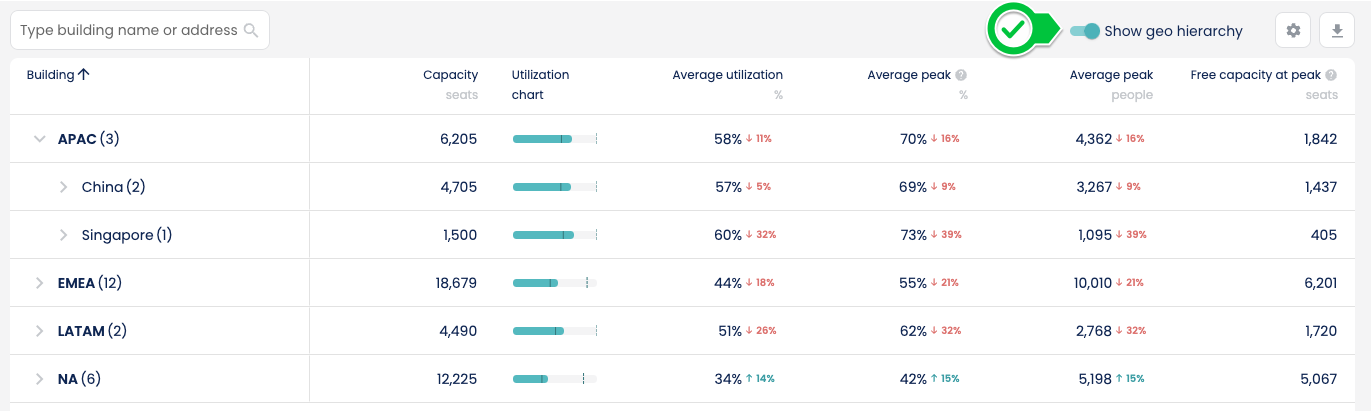 The geo hierarchy toggle lets users switch between having a building list that is grouped around regional groupings or having a flat list. The toggle is enabled by default.
When to use geo groups
- Geo groups aggregate key metrics at the grouping level (e.g. country and regional) making it useful to compare entire regions at a glance.
- The headers in the table can be used to sort the key metrics, so for instance it can be used to identify where the most excess space is to where most space is needed.
When to use a flat list
- The flat list mode is useful to compare buildings to each other.
- It can be combined with the regional filter to make comparisons within a region with ease.
Configure table
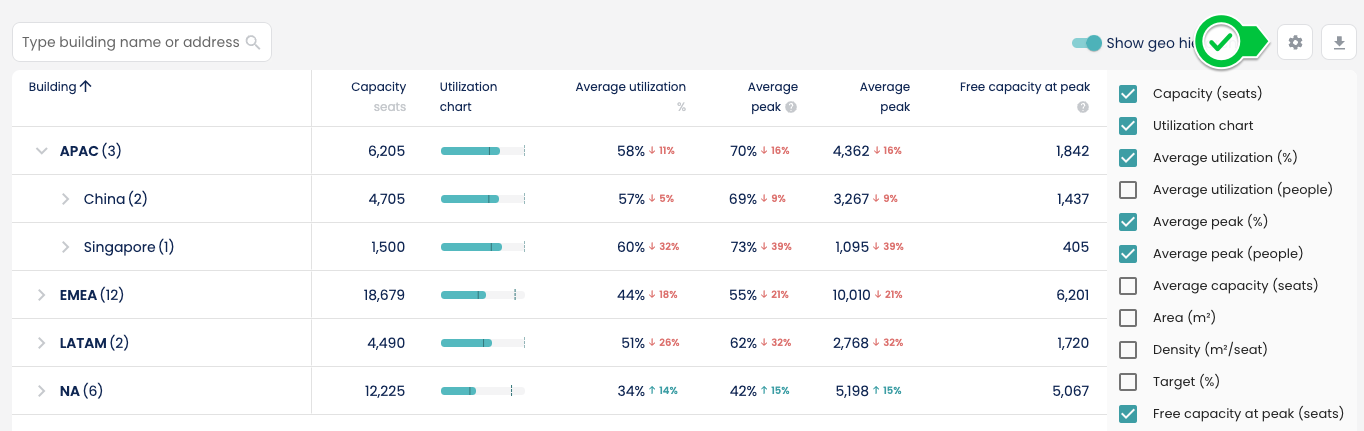
Default metrics
The default metrics are loaded with every new user session. Users can configure and change the metrics displayed, but this is only valid for this session, it will reset to the default the next time they sign in. The default metrics are:- Capacity (seats)
- Utilization chart
- Average utilization (%)
- Absolute/Average utilization (%)
- Absolute/Average utilization (people)
- Free capacity at peak (seats)
Download table
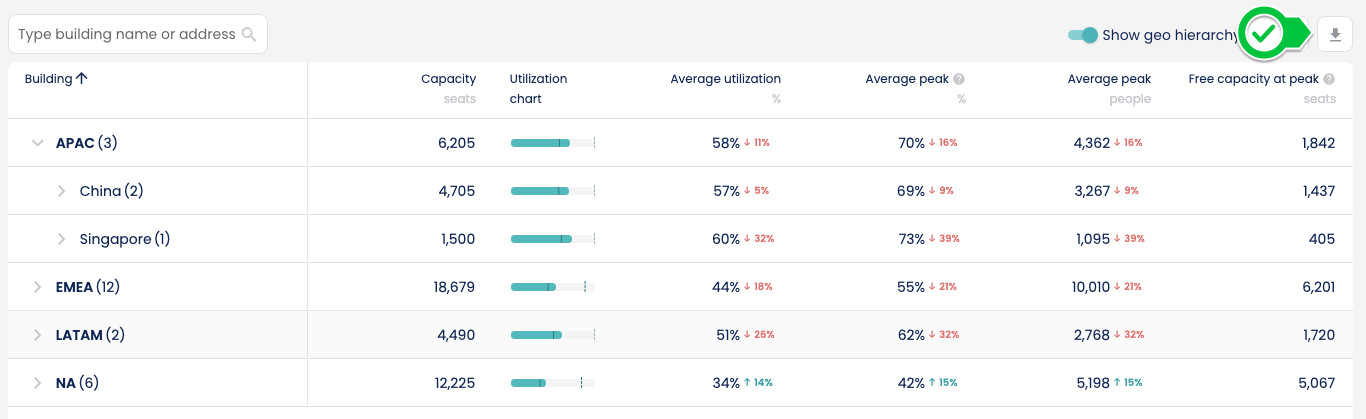 The download table button allows users to download the building table with the key metrics in an Excel file.
Metrics included
The downloaded file will include all key metrics, even if they are not visible by default or visible on screen (the full list can be seen using the configure table button).Additional fields
Aside from the metrics, additional fields are included in the file so that the user can use them for filtering and analysis in Excel. These are:- Regional groupings
- Time zone of the building
- The start and end dates for the time period selected
Buildings
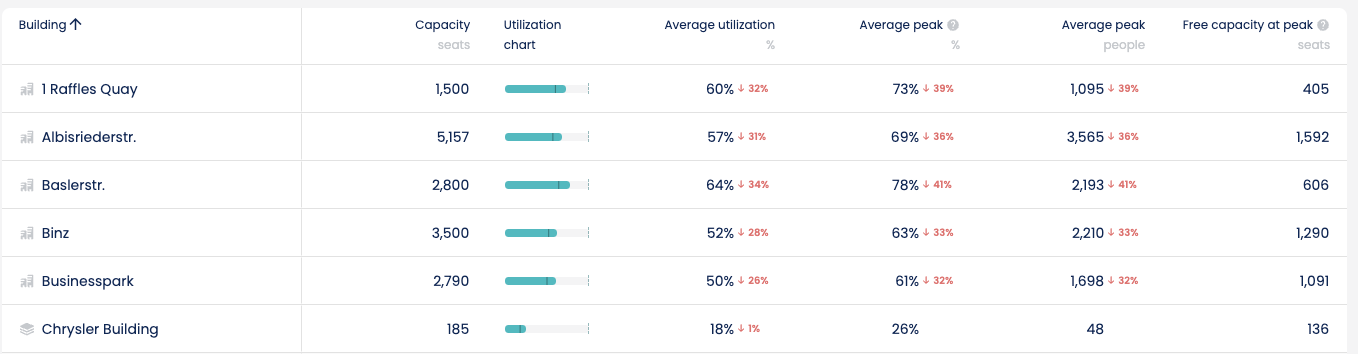
Key metrics
- The default metrics are specified in the Default Metrics section above.
- The user can configure different ones using the Configure button and rearrange them in a different order by clicking and dragging the headers around.
- Note that these changes are temporary (to the session) and reset the next time the user signs in.