What is data validation?
- Locatee’s data validation tool allows end users to benchmark the accuracy of Locatee Analytics data against manual counting.
- It is also a necessary step during the setup process in order to properly calibrate the incoming data sources and ensure an optimal level of measurement reliability.
- Data validation is an activity performed on-site in the building.
Preparation checklist
- Prepare a fully charged laptop computer or tablet with Internet access.
- Ensure that workplace capacity and floor plans are up to date in Locatee Analytics.
How to perform a data validation
📘 Timing matters Avoid beginning the counting session on the hour or half hour, as many meetings are scheduled to start and end at that point. This creates a lot of movement on the floor and can influence the results. For example, It’s better to start counting at 10:20am instead of 10:00am.Open Locatee Analytics. Navigate to the building you wish to validate, then click on Data Validation. Click on New to start a new counting session.
Workplace Operations plan
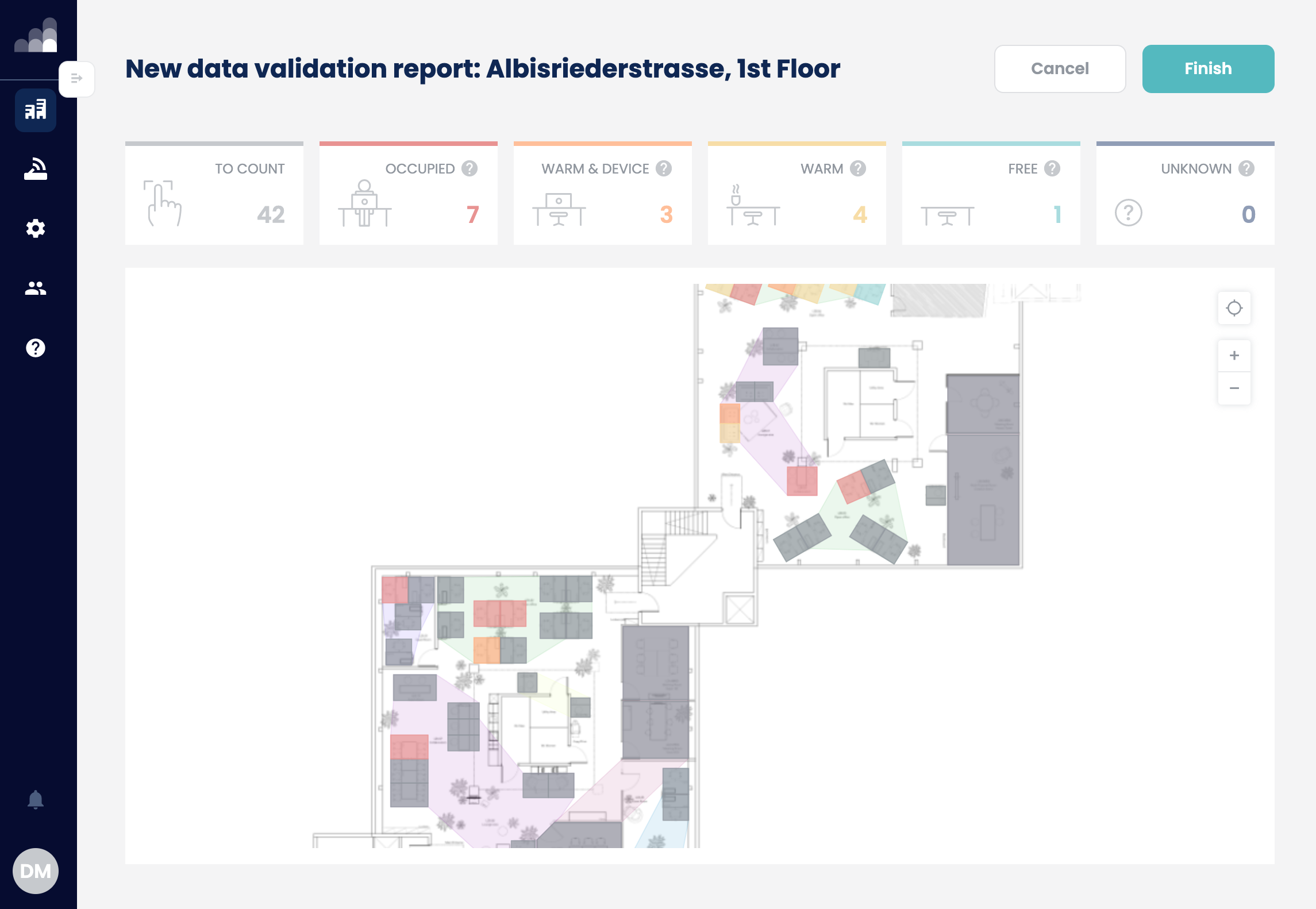
Select the floor then click Start Data Validation.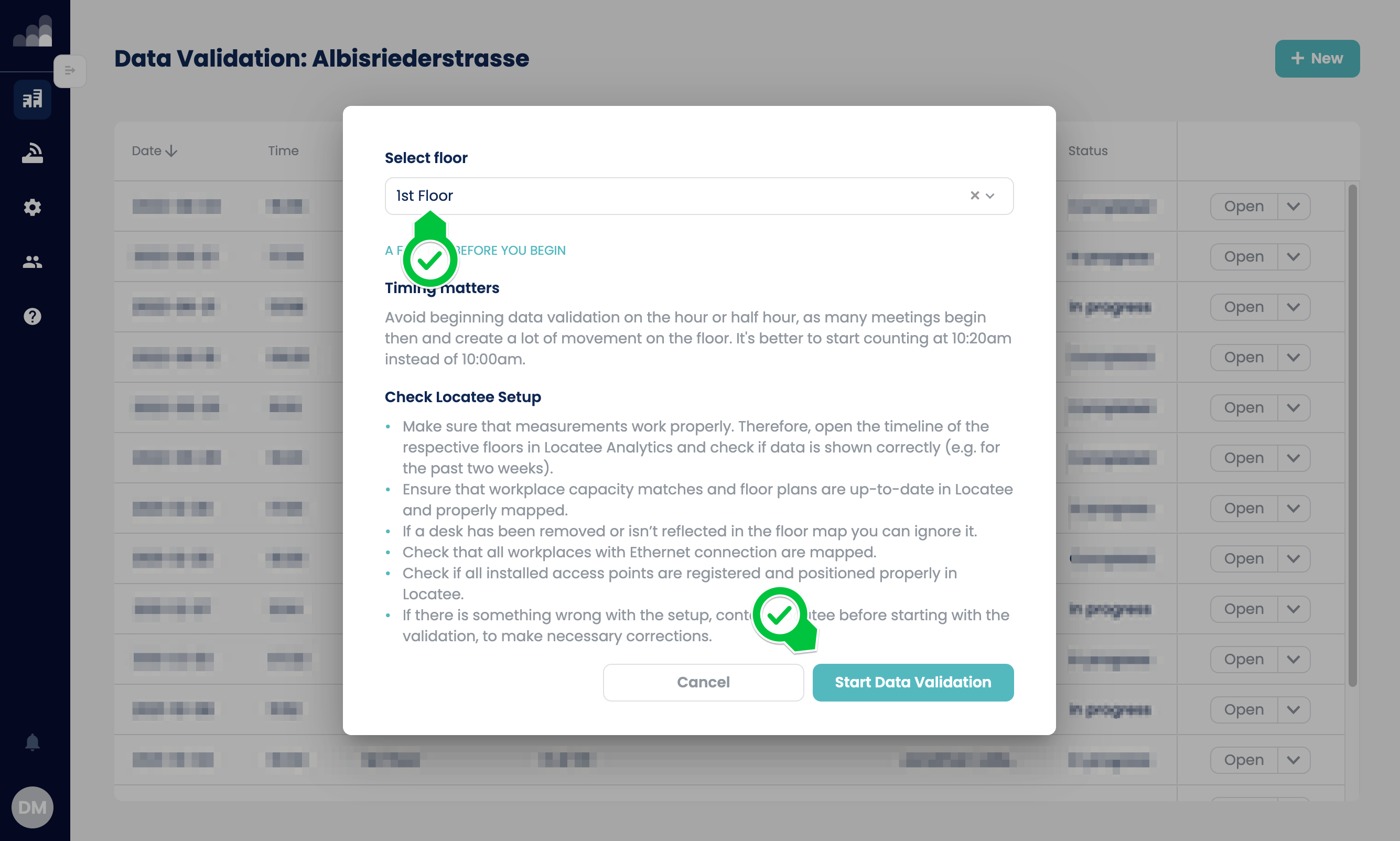 Go through each space on the floor plan and mark the observed state. You can choose between either of the available states:
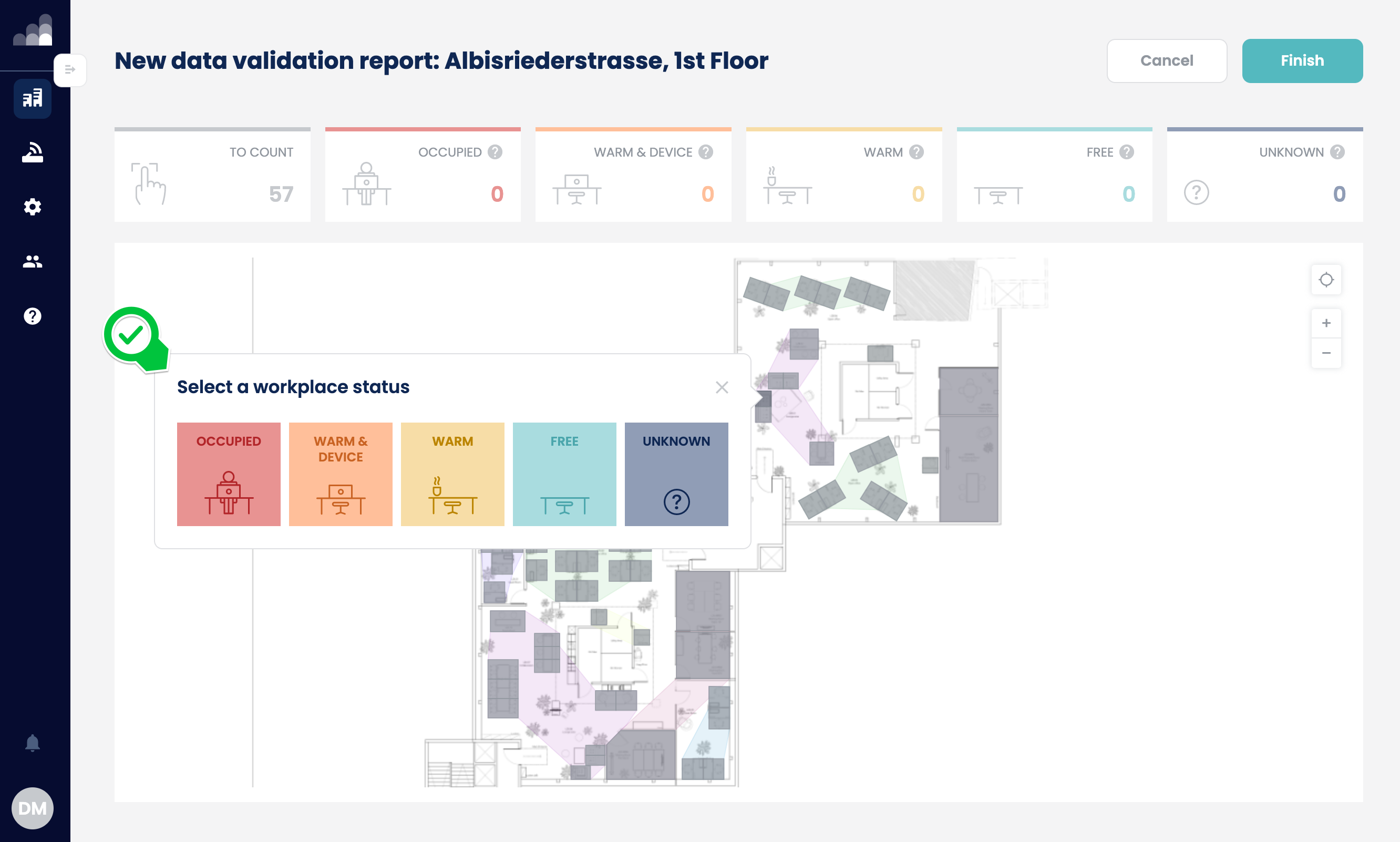
- Occupied: An employee is present at the workplace with an active device (laptop).
- Warm with device: No employees are present at the workplace, but an active device (laptop) has been left at the location.
- Warm: No employees are present at the workplace and there are no devices showing a sign of life, but there are other personal belongings that signal a former occupation.
- Free: The workplace is not occupied and there are no signs of an employee’s presence.
- Unknown: The workplace is not visible, no longer there, or you are not able to see the status because the door is closed.
Advanced Portfolio Insights plan
Counting guidelines
- Count one floor at a time.
- Take a note of the start and finish times of the process - note down at what time you started and when you finished the count, for example 17th December, 10:50 - 11:15.
Status visualisation
We are only counting people with personal devices. There are 3 status options to choose from:- Occupied: An employee is present at the workplace with an active device (e.g. a laptop), or the workplace is occupied by a laptop
- Free: The workplace is not occupied or is occupied by an employee that doesn’t have a laptop.
- Unknown: A device is not visible, or you are not able to see the status inside a room because the door is closed.
Registering a manual count
Select the floor then fill in the required details:- Total counted people
- Date
- Validation time span
Results
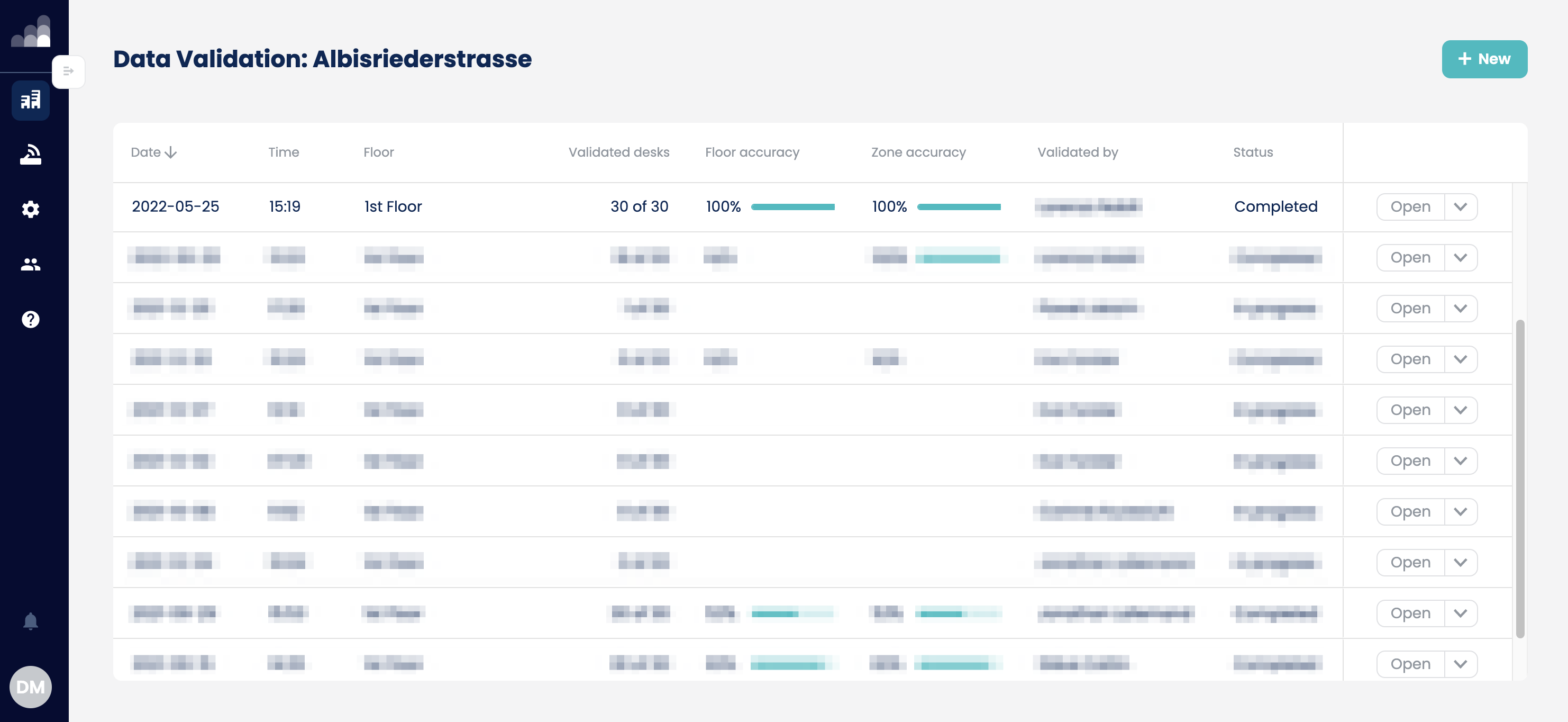
Once the report has been submitted, Locatee will compute the results and produce an accuracy factor for floor and zone level. You can review the results of previous sessions in the Data Validations list: