

Creating a building
📘 Geo hierarchy Make sure that all required geo hierarchy entries exist before creating the building. See this page for more information.Go to Admin → Buildings, click on the + New button and fill in the required fields.
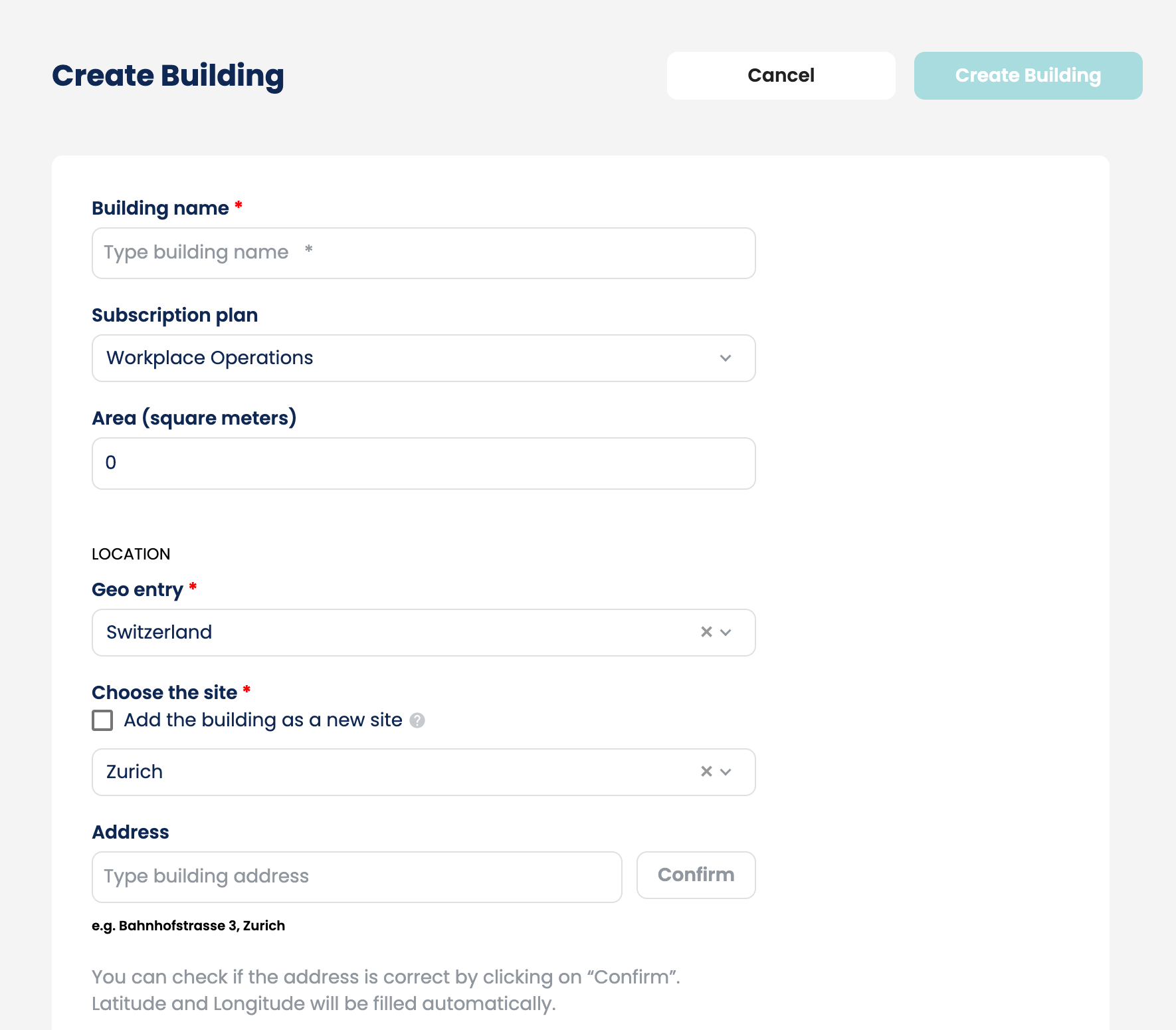
🚧 Billable metrics A building’s subscription plan and area count as billable metrics. Introducing or modifying them will alter the scope of your Locatee subscription, and might have an effect on the amount charged on your service fee. Please contact your Locatee project manager for more information.
Click Create Building to complete the process.
Building setup
Go to Building Setup, and fill in the following fields:
Click on Update Building to save changes.
Creating a floor
📘 Portfolio Insights For buildings in the Portfolio Insights plan, this step is not required.Open the newly created building, go to Floors then click on the New Floor button:
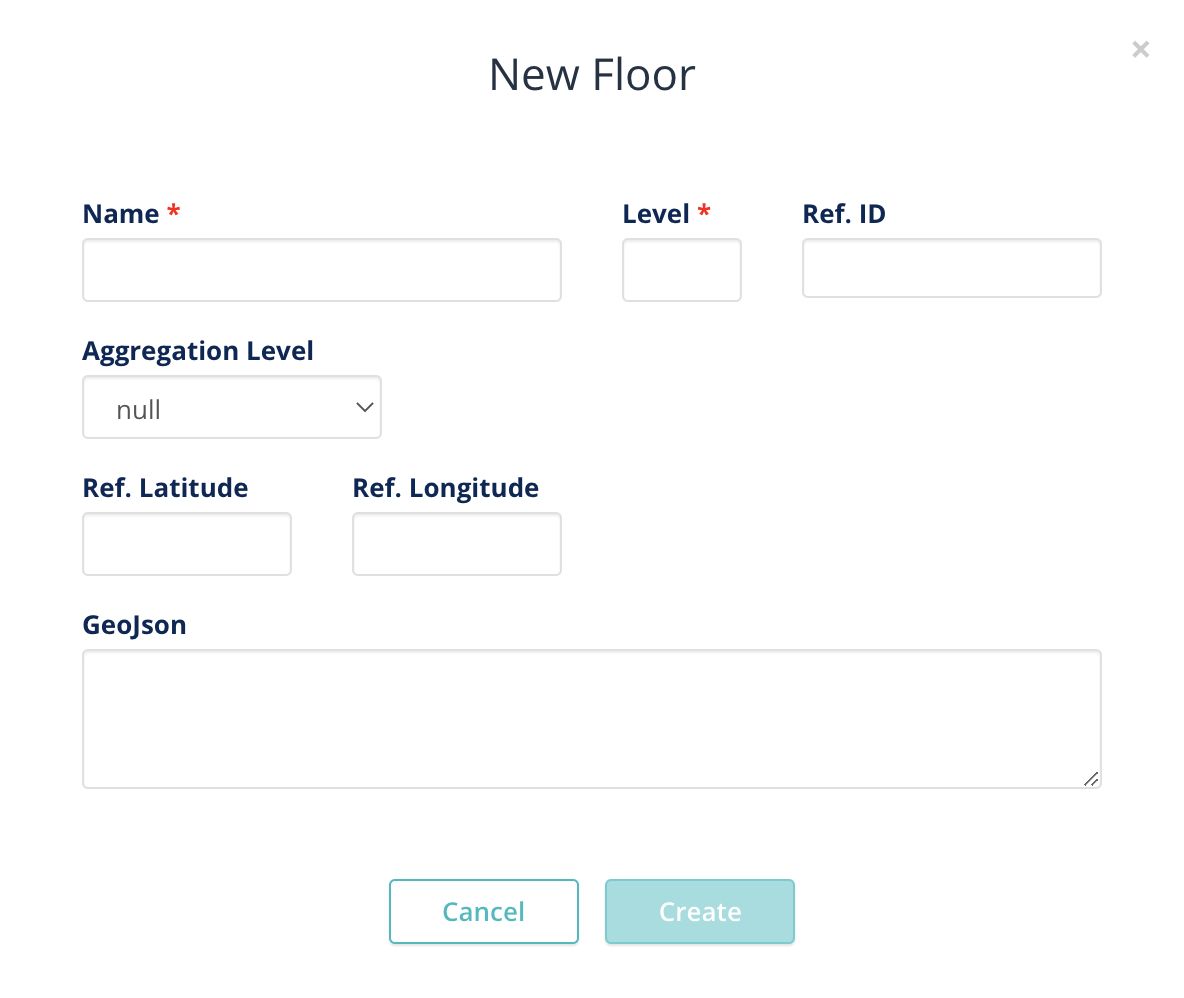 Fill in the Name and Level of the floor, then click Create. Repeat for all floors in the building.
The floor plans will be prepared and processed by Locatee’s CAD design team. See next page for more information.
Fill in the Name and Level of the floor, then click Create. Repeat for all floors in the building.
The floor plans will be prepared and processed by Locatee’s CAD design team. See next page for more information.