

Utilization overview
Key metrics
Capacity
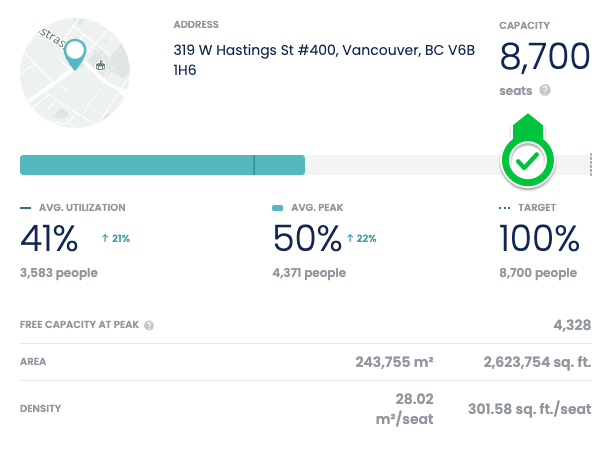 Displays the capacity of the building or floor. The capacity definition differs according to global filters selected for People / Spaces and Space Type.
- With People toggle: the capacity is the number of seats in the building.
- The default seat capacity is the total number of desks in that building.
- Users can choose to set their own capacity number by customising the type of seats (desks, seats in meeting rooms, collaboration areas, or all) that go into the capacity sum.
- With Spaces toggle:
- With Space Type: Desks filter: the capacity is the number of desks in the building.
- With Space Type: All filter: the capacity is the number of individual spaces in the building.
Averages, peaks and target
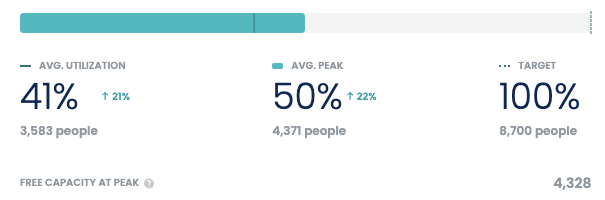
Average utilization
The average utilization shows the average number of people or spaces present across the analysed time period. The % calculation is relative to the capacity.Absolute / Average peak utilization
The peak utilisation is the maximum concurrent number of people or spaces present over a given time period. The metric displayed changes based on the global filters selected (see variations under visual). The % calculation is relative to the capacity.- Average peak utilization takes the daily maximum, and averages them (using the mean value).
- Absolute peak utilization takes the single largest daily peak value over the selected time period.
Target utilization
The target is defined as the optimal level of utilization. The default value is 100%, and can be customised per building.Free at peak
The number of free occupancy units (people, spaces or desks, depending on the selected page) when the peak utilization occurred. For example:- Absolute peak = 20 people
- Capacity = 30 seats
- Target = 80% (24 people)
- Free at peak: 24 - 20 = 4
Utilization bar
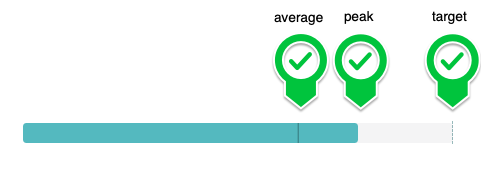 The utilization bar displays graphically the average utilization, peak utilization and target utilization relative to each other.
Utilization distribution
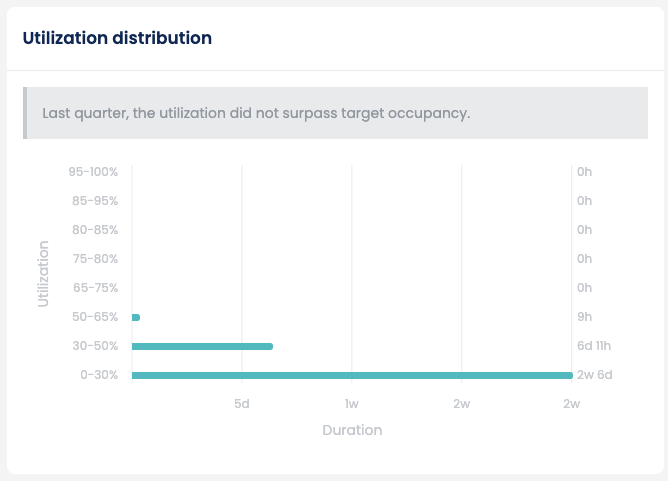
Utilization buckets
Displays the duration for each utilization bucket level visually and numerically during the selected time period.- The total duration counts are measured in clock time (as opposed to working hours / working days).
- This chart helps users understand how full or empty their building is and how spread the utilization levels are.
- A utilization distribution with a wide spread means that space needs should not be calculated with average peak calculations and instead should consider using absolute peak calculations.
- A utilization distribution with a narrow spread means that space needs can be considered based on average peak calculations as space needs during peak utilisation can be managed with more ease.
Utilization timeline
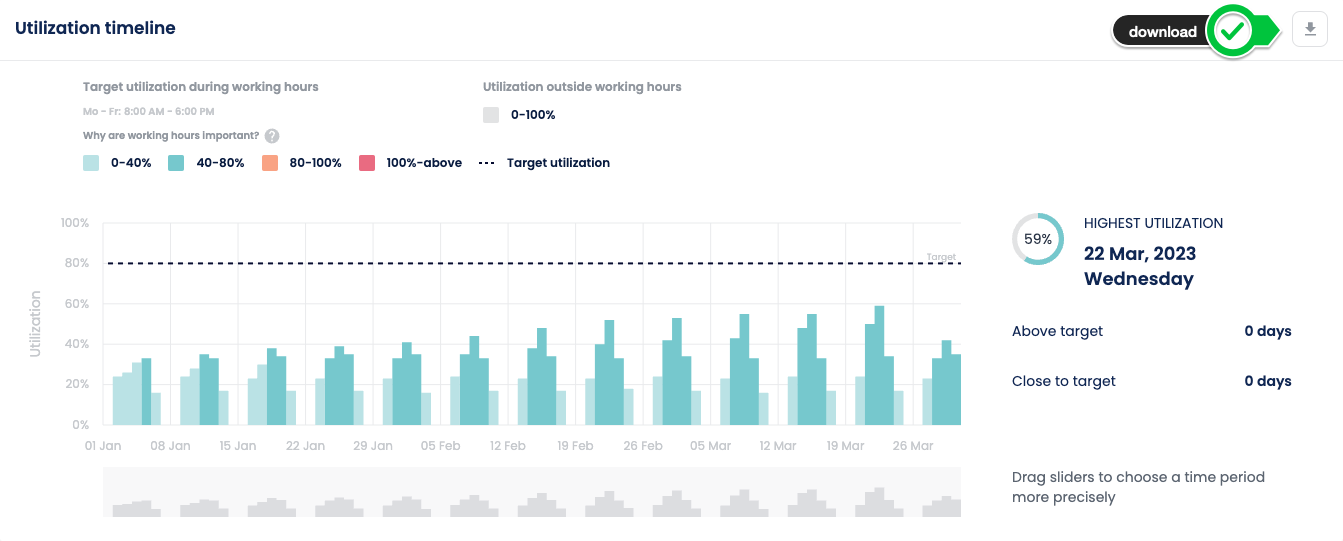
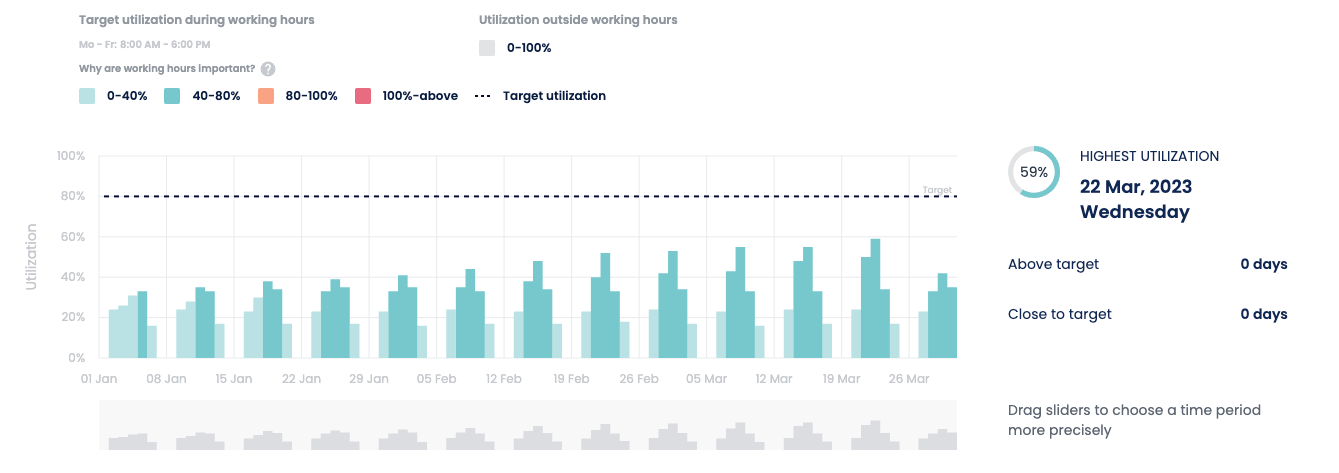 The utilization timeline shows the % of desks used or people present relative to capacity across the analysed time period (y-axis).
The timeline (x-axis) breaks down the time period selected into buckets dynamically chosen based on the amount of data presented.
This list shows which bucket will be chosen for each time period:
The utilization timeline shows the % of desks used or people present relative to capacity across the analysed time period (y-axis).
The timeline (x-axis) breaks down the time period selected into buckets dynamically chosen based on the amount of data presented.
This list shows which bucket will be chosen for each time period:
- daily
- year(s)
- quarter
- hourly
- month(s)
- weeks
- 15-minutes
- week
- yesterday
- one specific day
Patterns
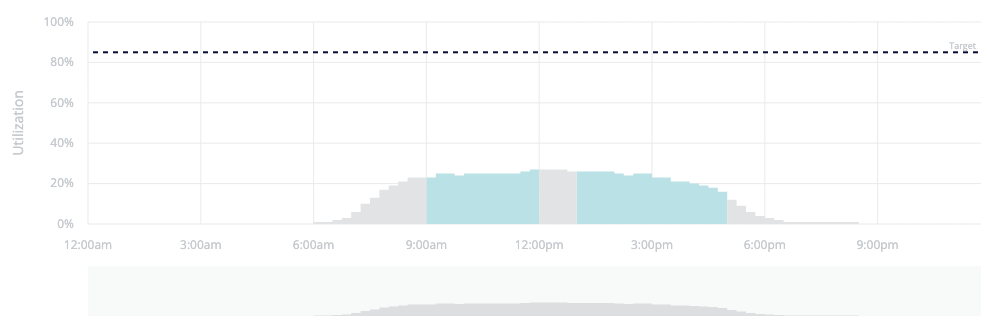
A daily pattern can reveal how employees arrive and leave the office. A left weighted pattern indicates that employees arrive at the in a short window of time, but leave the office over a longer time window: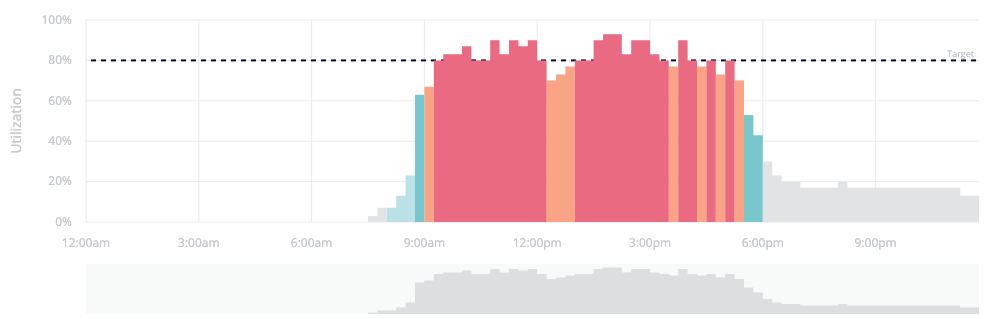 A center weighted pattern indicates that employees arrive and leave in a uniformly staggered approach:
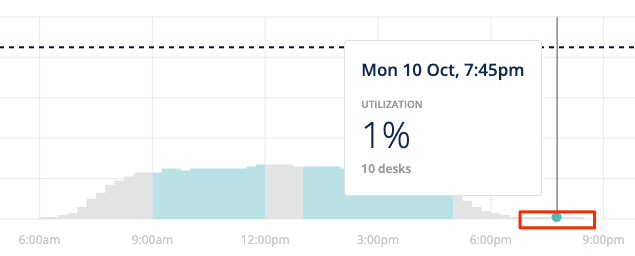
 An after-hours flatline can indicate the presence of always-on devices rather than indicating people/spaces actively being in the office building after hours:
Colours
Utilization level buckets
Visually indicates the level of utilization for a given time bucket in relation to the set target utilization. The number of bars can give a visual indication of duration of utilization at that level. i.e. If half the bars are red, 50% of the time utilization is 100% of the target utilization.Out of working hours / Working hours
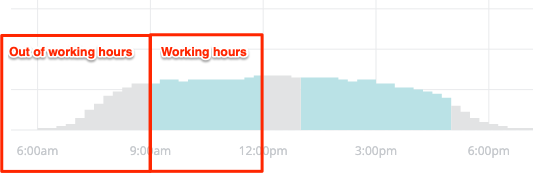 Indicates visually if utilization levels are outside or inside of the office working hours configured by the user. A high utilization outside of working hours can indicate the need to adjust the availability of services for employees.
Trends
- Utilization timeline when looked at longer periods of time (180days+) can reveal trends in space needs.
- Shorter time frames can be used as well (e.g. last quarter, this quarter) to reveal month on month trends. These are useful for reporting but not reveal long term trends.
- Very long time periods (1+ years) can reveal cyclical patterns associated to seasonality.
Download timeline
 The download timeline button can be used to download a copy of the timeline in CSV format.
The downloaded information is presented in the same granularity as shown visually in the chart. The metrics are presented both numerically (absolute values) as well as the % values.
The download timeline button can be used to download a copy of the timeline in CSV format.
The downloaded information is presented in the same granularity as shown visually in the chart. The metrics are presented both numerically (absolute values) as well as the % values.
Utilization insights
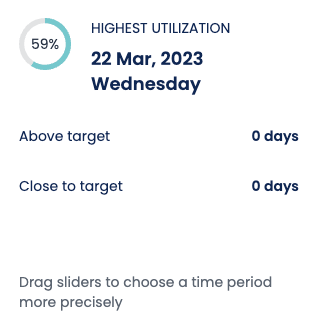 The following insights are provided for the timeline:
- Highest utilization - The day with the highest peak utilization along with the utilization for that day. The colour of the ring matches the bar colour on the timeline.
- Above target - The number of days where the peak utilization breached the target utilization
- Close to target - The number of days where the peak utilization almost breached the target utilization (between 80 to 100% of target utilization)
Weekly pattern
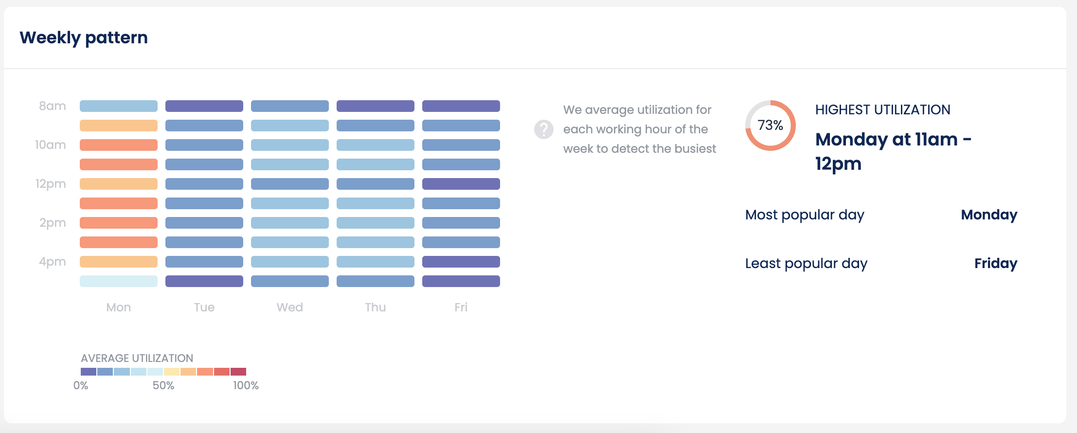 The weekly pattern averages utilisation per working hour of the week and displays it in an overview to that utilisation patterns across a week can emerge.
Busiest hour per day
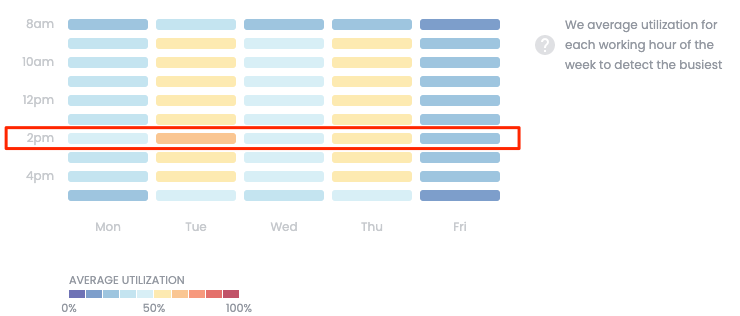 Looking horizontally at each hour, users can visually estimate which hour of the day is the busiest by looking for the row which the largest number of cells denoting high utilisation.
Busiest day per week
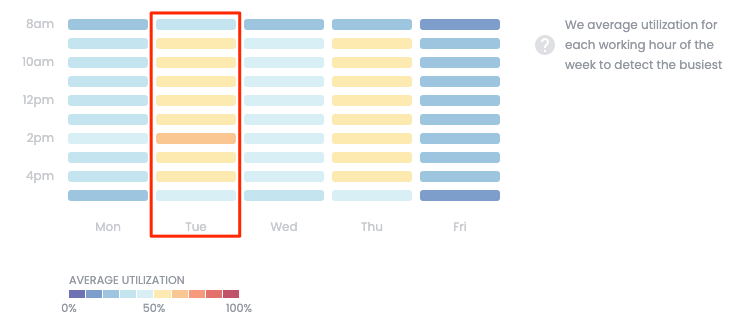 Looking vertically at each day of the week, users can visually estimate which day of the week is the busiest by looking for the column with the largest number of cells denoting high utilisation.
Tooltip
Hovering over any cell in the weekly pattern will display a tooltip indicating the average utilisation in terms of numeric values (desks/spaces/people) as well as as a percentage.Weekly pattern insights
The following insights are provided for the weekly pattern:- Highest utilization - The day and hour of the highest (peak) utilization.
- Most popular day - The day of the week with the highest peak utilization
- Least popular day - The day of the week with the lowest peak utilization
Unsupported time ranges
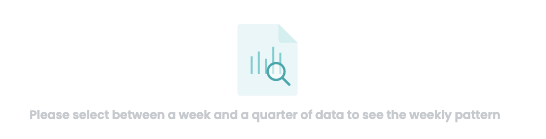 The weekly pattern is only available for time ranges between a week (minimum) and a quarter (maximum). Date ranges outside of this will result in a message being shown to users asking them to adjust their date range.