

Introduction
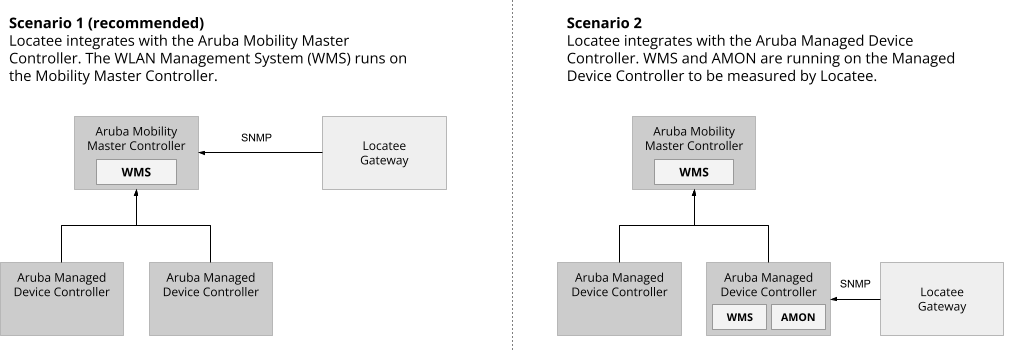
The Aruba WLAN Management System (WMS), running on the Aruba Mobility Master controller, monitors wireless network events (such as connected end-user devices). Locatee continuously reads this information from the WMS system to provide workplace analytics. The WMS system must run on each Aruba Mobility Controller which Locatee should query. If a Controller is a Managed Device of a Mobility Master or Mobility Conductor, there are two available options:- Locatee queries the Mobility Master / Mobility Conductor (recommended)
- Locatee queries the Managed Device Controller. In order to query the managed device controller, the WMS system must be enabled on the managed device controller.
Supported devices
OS version
Aruba Controller with ArubaOS version 8.6.x or laterHardware
- 7000 Series Hardware Mobility Controllers: 7005, 7008, 7010, 7024, 7030
- 7200 Series Hardware Mobility Controllers: 7205, 7210, 7220, 7240, 7240XM, 7280
- 9000 Series Hardware Mobility Controllers: 9004, 9012
- MC-VA-xxx Virtual Mobility Controllers: MC-VA-10, MC-VA-50, MC-VA-250, MC-VA-1K
Configuring Aruba Mobility Master
Enable SNMP on the Mobility Master
Please follow the instructions in the ArubaOS manual (ArubaOS > Management Utilities > Configuring SNMP), copied here for convenience:Web UI
- At the correct level in the managed device node hierarchy, navigate to the Configuration > System > SNMP page.
- Configure hostname, syscontact and syslocation if it hasn’t been configured already.
- Configure a SNMP version 3 user (recommended) by clicking “+” in the Users for SNMPv3 section to add a new SNMPv3 user.
- Select authentication protocol sha and privacy protocol AES. Generate two distinct passwords for authentication and privacy protocol.
- Alternatively, if SNMPv2 should be used, add a community string in the Community string for SNMPv1 and SNMPv2 section by clicking + and supplying a name in the appearing input field.
- Click Submit.
- Apply the pending changes, by clicking Pending Changes in the top right corner.
- In the Pending Changes window, select the check box and click Deploy changes.
CLI
Configure either a SNMP v2 community or a SNMP v3 user:- Configure hostname, syscontact and syslocation if it hasn’t been configured already:
hostnamenamesyscontactnamesyslocationstring
- Configure a SNMP v3 user (recommended):
snmp-server user name auth-prot sha password priv-prot AES password - Configuring a SNMP version 2 community (alternative):
snmp-server community string
Configuring Aruba Managed Device Controller
🚧 Fallback option This setup should only be used if the first option (querying the Mobility Master / Mobility Conductor) is not feasible. For purposes of data stability, Locatee recommends querying the Mobility Master.The following steps enable WMS, AMON and SNMP on the Managed Device Controller.
Enable Local WMS Termination
Please follow the instructions in the ArubaOS manual (ArubaOS > Wireless Intrusion Prevention > WLAN Management System > Configuring Local WMS Settings), copied here for convenience:- At the correct level in the managed device node hierarchy, navigate to Configuration > System > Profiles.
- Expand the IDS menu and select IDS WMS Local System.
- Configure the parameters as described in Table 1 and then click Submit.
- Click Pending Changes.
- In the Pending Changes window, select the check box and click Deploy changes.
Enable AMON messaging between Managed Device and Mobility Master
Please follow the instructions in the ArubaOS manual, copied here for convenience:- At the correct level in the managed device node hierarchy, navigate to Configuration > System > More > General page and configure the Mobility Master as management server for the managed device.
- Enable AMON messaging from the managed device to Mobility Master using the Mgmt Config profile in Controller Profile under the Configuration > System > Profiles page of the Mobility Master WebUI.
Enable SNMP on the Managed Device
Web UI
- At the correct level in the managed device node hierarchy, navigate to the Configuration > System > SNMP page.
- Configure hostname, syscontact and syslocation if it hasn’t been configured already.
- Configure a SNMP version 3 user (recommended) by clicking “+” in the Users for SNMPv3 section to add a new SNMPv3 user.
- Select authentication protocol sha and privacy protocol AES. Generate two distinct passwords for authentication and privacy protocol.
- Alternatively, if SNMPv2 should be used, add a community string in the Community string for SNMPv1 and SNMPv2 section by clicking + and supplying a name in the appearing input field.
- Click Submit.
- Apply the pending changes, by clicking Pending Changes in the top right corner.
- In the Pending Changes window, select the check box and click Deploy changes.
CLI
Configure either a SNMP v2 community or a SNMP v3 user:- Configure hostname, syscontact and syslocation if it hasn’t been configured already:
hostnamenamesyscontactnamesyslocationstring
- Configure a SNMP v3 user (recommended):
snmp-server user name auth-prot sha password priv-prot AES password - Configuring a SNMP version 2 community (alternative):
snmp-server community string