

Prerequisites
For details about the requirements for the deployment of a Locatee gateway on-premise, please see the Gateway requirements section hereAccess credentials
Locatee will provide you with the following files:Google Cloud
- gateway JSON key for downloading the gateway Docker image from our repository.
- logging JSON key for forwarding gateway logs to our monitoring service.
AWS
- access key ID and secret access key for downloading the gateway Docker image from our repository.
Install Docker
📘 Note Fullrootpermissions are required for the steps below.
Usesudo su -
-
Create the Locatee service user and base directory:
-
Uninstall old Docker versions:
Note
For Ubuntu follow the official documentation instead of using the commands below
https://docs.docker.com/engine/install/ubuntu/ -
Add the Docker repository:
-
Install and enable Docker:
- Optional: If a proxy is set up on the server, make sure the proxy is also configured for Docker. See: https://docs.docker.com/config/daemon/systemd/#httphttps-proxy
-
Install and enable Docker Compose:
📘 Optional: Importing certificates for REST API data sources If using REST API-based data sources such as Cisco ISE or Cisco CMX, follow the steps below to import their certificates into the Java trust store:
Authenticate into the container registry
Google Cloud
- Copy the provided gateway and logging JSON keys into the base directory under the following paths:
- Authenticate with the provided account to pull the gateway images:
AWS
- Install the AWS CLI on the machine, using the provider’s instructions.
- Add the following block to
~/.aws/config:
- Add the following block to
~/.aws/credentials:
- Execute the following to generate
kubeconfig:
Configure the gateway
Create a gateway API token
- Open Locatee Analytics
- Go to Admin > Data Sources > Gateways
- Create a new On-Prem type gateway
- Copy the generated token and note the gateway’s unique ID:
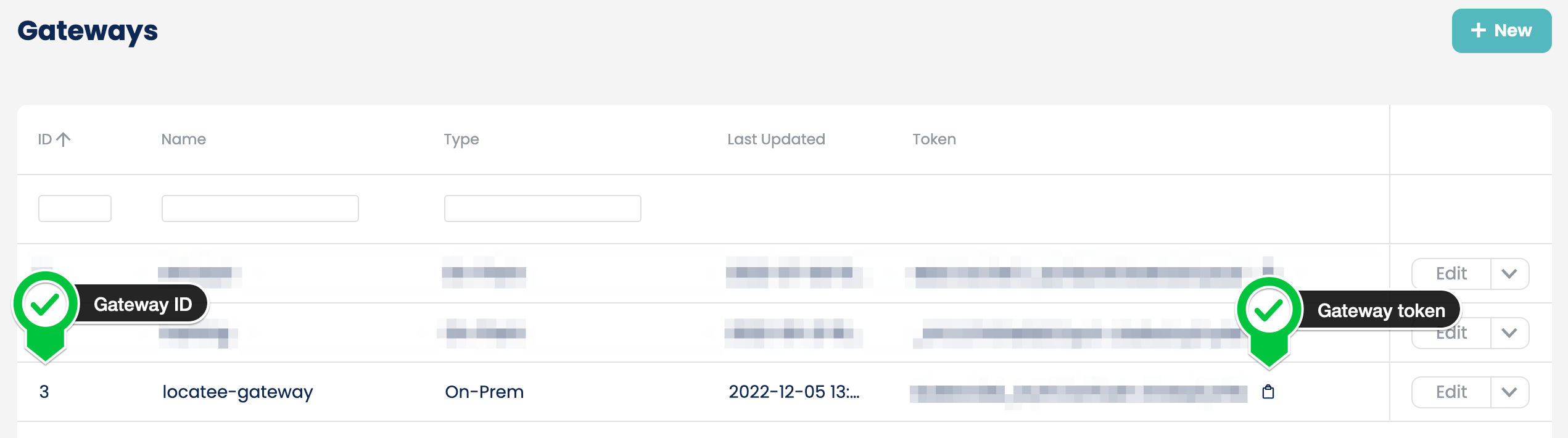
Create a gateway configuration file
Locatee Gateways are deployed using standard Docker Compose YAML templates. Fill in the template below with the required values:LOCATEE_GATEWAY_ID: ID of the gateway created earlierLOCATEE_API_TOKEN: token of the gateway generated earlierLOCATEE_API_URL: URL of the Locatee environment, for example<https://prod.customer.ch.locatee.com>LOCATEE_CUSTOMER_NAME: short form name of the Locatee environment, for examplecustomer-prod
Google Cloud
AWS