📘 Have you enabled wireless data collection? Measuring access point information requires the configuration of Locatee-specific credentials on the network hardware. Consult the following articles for Cisco or Aruba, or contact the Locatee Service Desk (support@locatee.com) for more information.
Add a new access point
- Go to Admin → Buildings → Access Points
- Click New Access Point and fill in the fields:
- Model: Model of the device, e.g. air-ap3802i-b-k9
- Address: IP address
- Name
- MAC Address: Base Radio MAC address
- Enabled: Yes
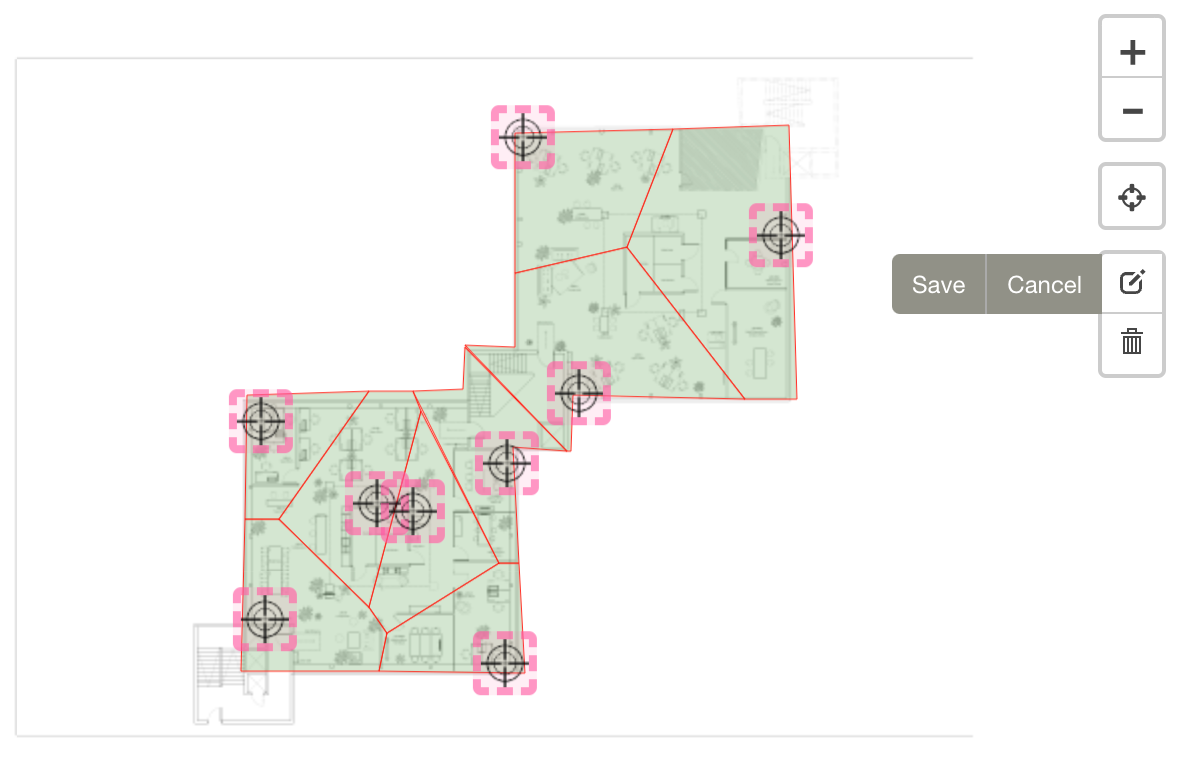
- If a floor plan is present, place the access point on the map.
- Click Create to confirm.
- Once all access points have been created and positioned, click the Tessellate Floor button to automatically configure the access point tessellation zones:
Import access points via CSV
Locatee supports the import of access points in bulk via a prepared CSV file.File preparation
Example
File import
- Go to Admin → Buildings → Access Points
- Click the Import button and load the prepared file.
- Position the access points on the map by clicking the Edit Layers button: