

📘 Are you receiving sensor data? Sensor data should be already processed by a sensor integration. A working connection creates sensors automatically in the Locatee database. Here is how to check this is taking place correctly:Sensors can also be created manually:
- Go to Admin → Data Sources → Sensors
- Check the Sensors table is populated. If that is not the case, check that the sensor integration is live and sending data properly.
- Click New Sensor
- Fill in the required details:
- Name
- Class: people counting or generic (presence)
- Click Create
- Repeat for as many sensors as needed.
Map a sensor to a space
- Go to Admin → Buildings and open the building you wish to map sensors for.
- Click on Desk Mapping. A new tab will open with the Desk Mapping page.
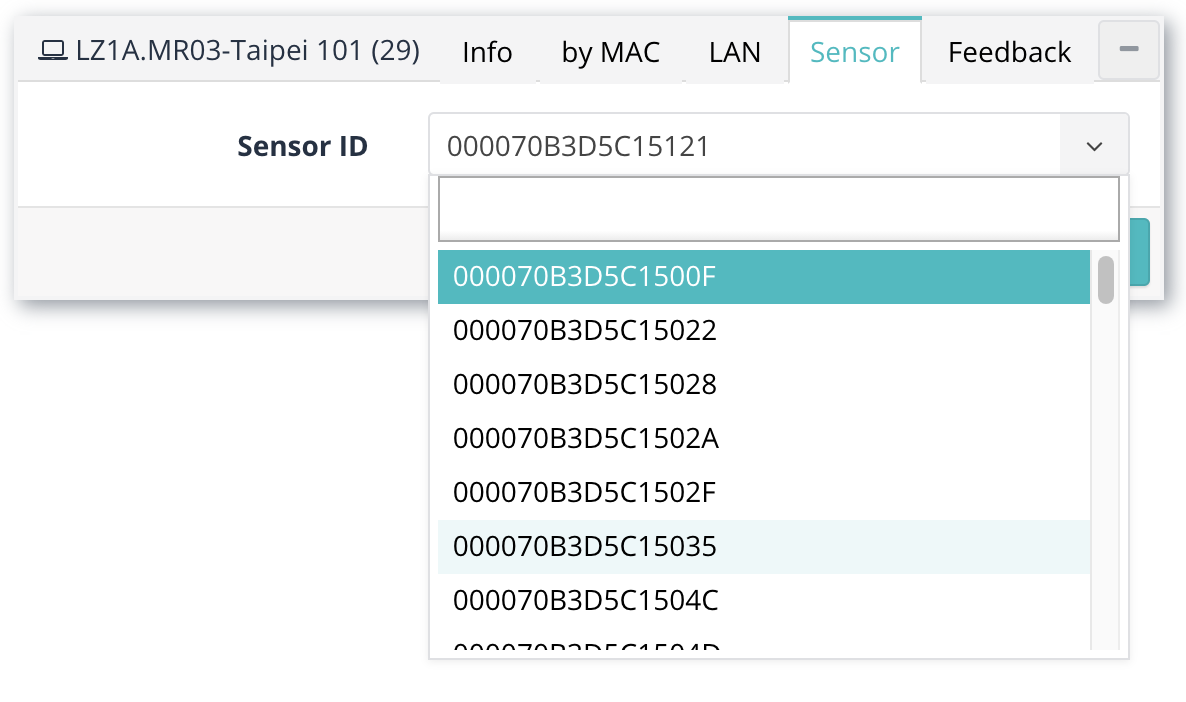
- Click on the space you wish to map, and go to the Sensor tab.
- Select the sensor ID from the dropdown that you wish to associate with that space. Filter for a specific ID by typing it in the search box.
- Click Save to confirm your selection.
- Repeat steps 4-6 for all desks.
Import sensor mappings via CSV
Locatee supports the import of sensor mappings in bulk via a prepared CSV file.File preparation
Example
File import
- Go to Admin → Data Sources → Sensors
- Click on the Import Mappings button and load the prepared file.