

Floors table
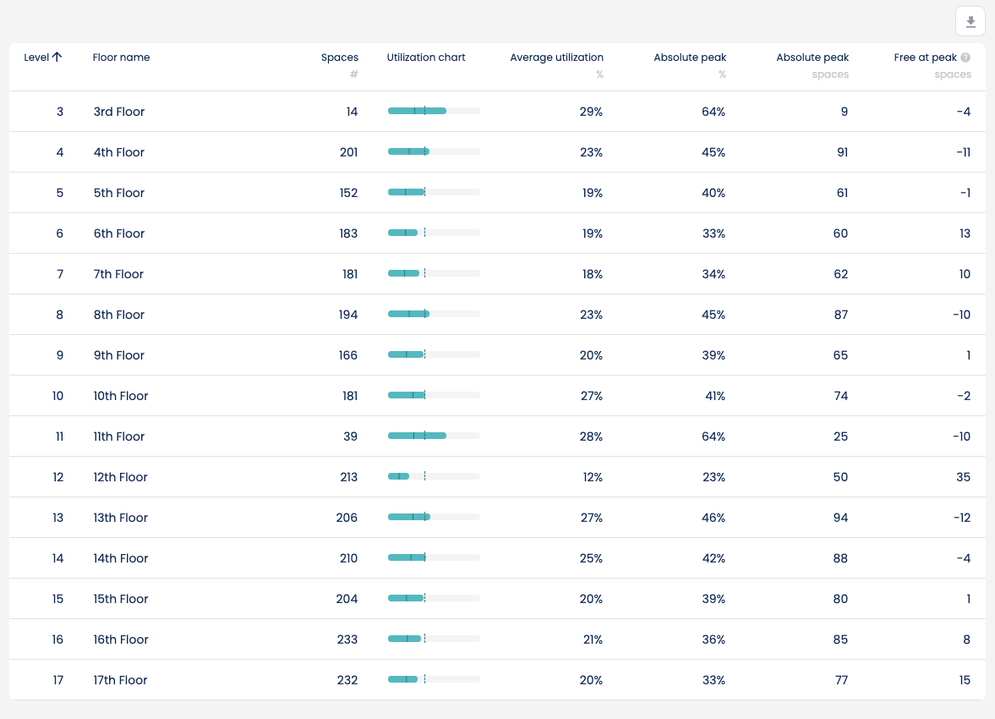
View-specific metrics
Level
The level indicates the ordering of the floors in the building. The table is, by default, sorted by this order. The ordering can start and end with any integer number.Floor name
Floor name allows users to give each level a name which can contain numbers and or letters. This is commonly used to give entrances to buildings special names such as: “Lobby”, “EG” or “Ground Floor”Capacity
- In the Spaces mode the Spaces number shows how many spaces with the space type desk are present on each floor. When the space type filter “All” is selected, the metric switches to the number of total spaces per floor.
- In the People mode the Capacity shows how many seats are present on each floor. This can be configured as a sum of seat capacities in defined space types, or as a custom number.
- When a floor has no desks or spaces on it, the row may appear greyed out. For example, it is quite common to see the floor with the entrance to a building have 0 desks.
Utilisation by space category
Space category selection
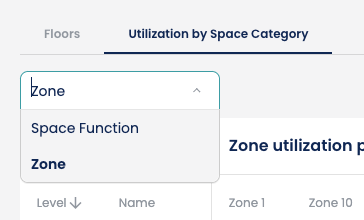
- Use the space category dropdown to choose how the zone utilisation peak is defined.
- This table works best when used with a space set category denoting “zones”, or any other grouping that gets repeated in every floor, such as with “quadrants” and “wings”.
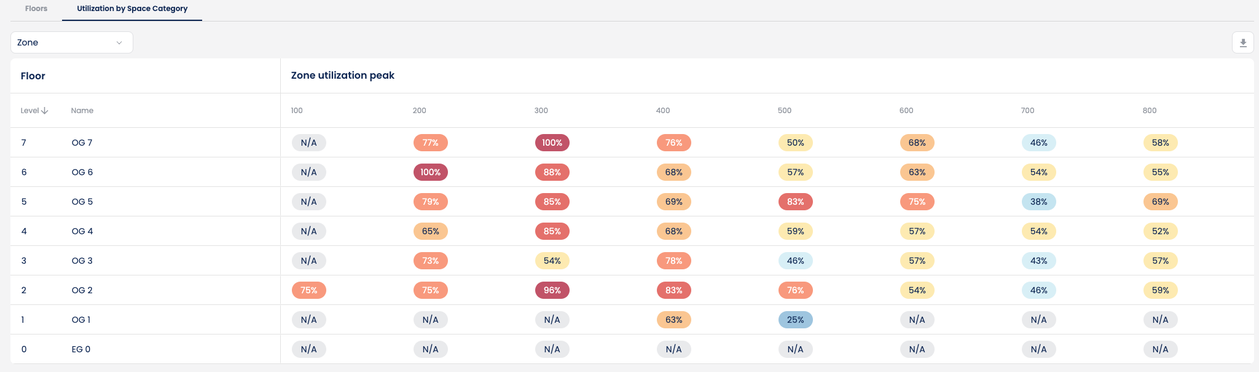
Zone utilisation peak
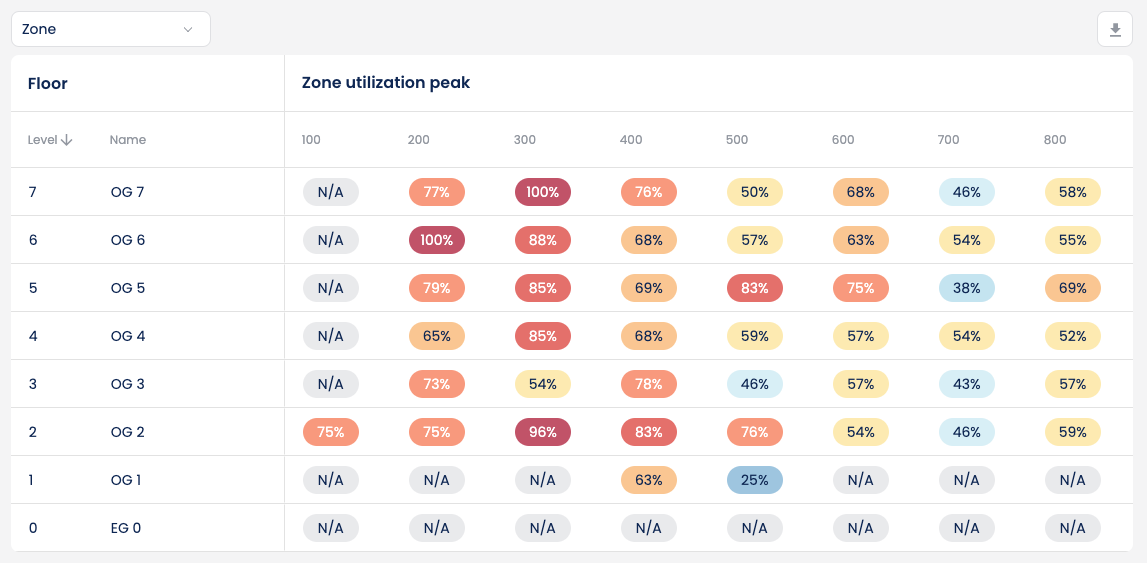
- The zone utilisation peak gives at a glance a cross sectional view of how the building peak utilisation looks like.
- The colouring scale ranges from light blue (low utilisation) to dark red (high utilisation)
Busiest floor
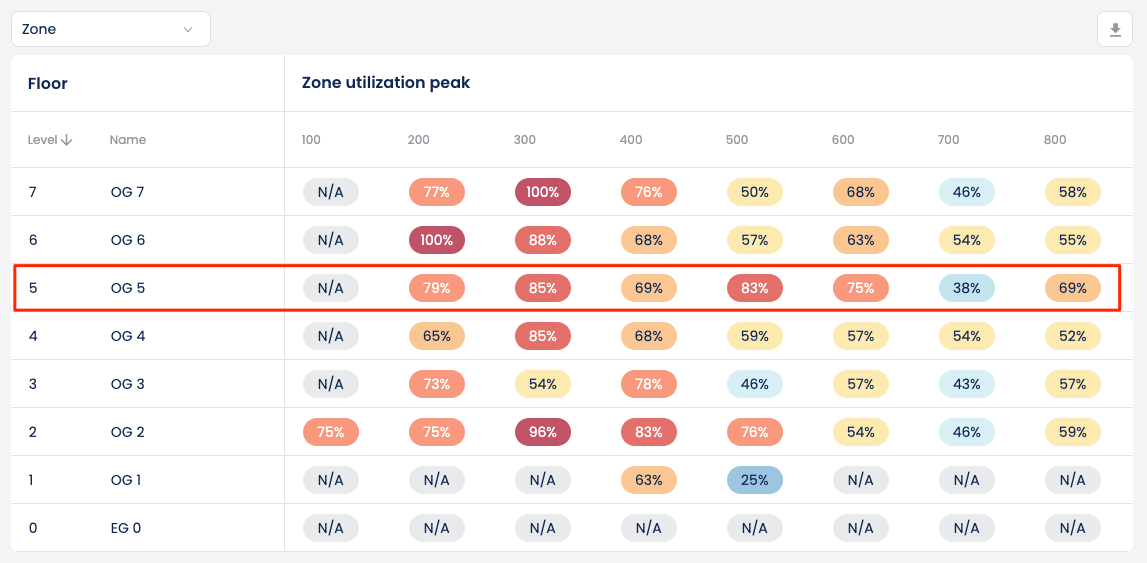 Looking horizontally, for the floor which has as many dark red cells can give an estimation on what the busiest floors are.
Busiest quadrant/repeating zone
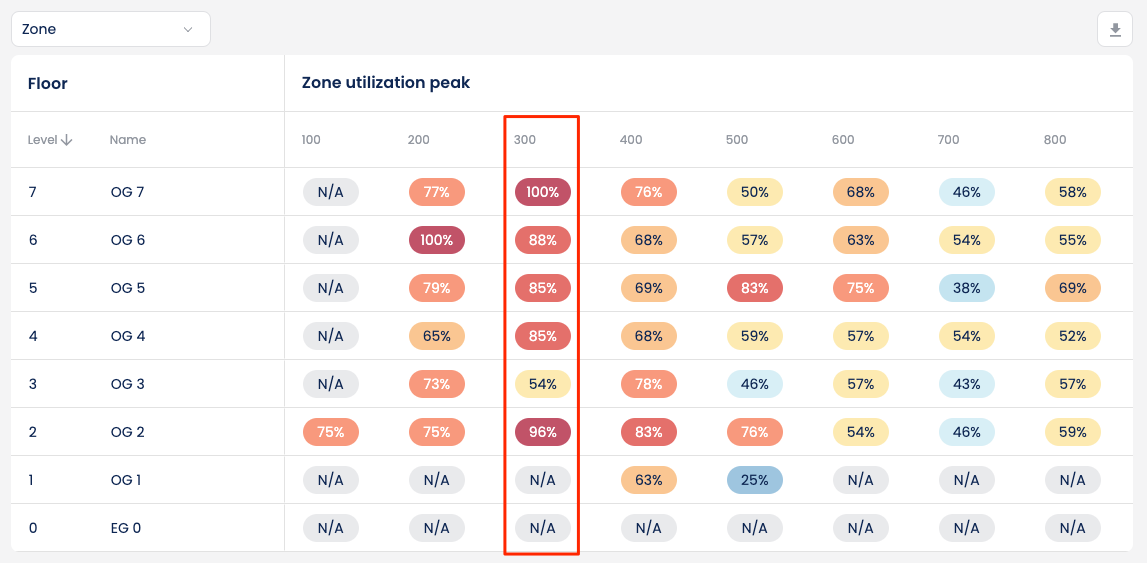 Looking vertically, for the quadrant/repeating zone that has as many dark red cells can give an estimation on what the busiest repeating section of the floor is throughout the whole building.
Opportunities for adjacent rebalancing
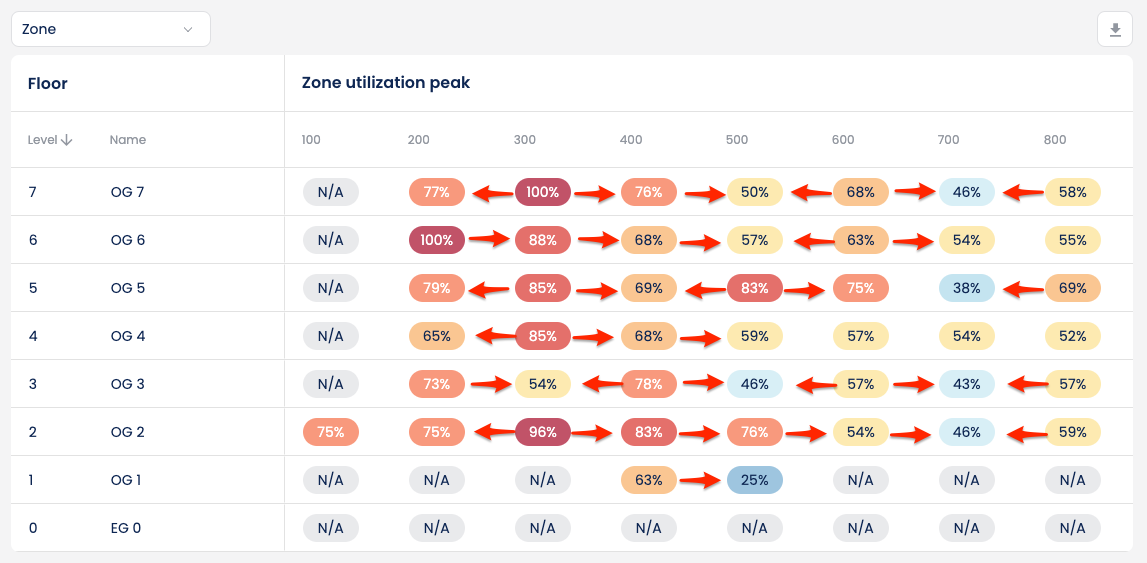 Looking at adjacent zones can give a view on opportunities for rebalancing space across neighbouring zones, especially where the peak utilisation has reached or is approaching 100%.
Other opportunities to look for are when two adjacent cells have a high peak utilisation numerical difference between them. This can be also inspected by looking at the colour of the cells (e.g. dark red next to a light blue would be the biggest difference).
Looking at adjacent zones can give a view on opportunities for rebalancing space across neighbouring zones, especially where the peak utilisation has reached or is approaching 100%.
Other opportunities to look for are when two adjacent cells have a high peak utilisation numerical difference between them. This can be also inspected by looking at the colour of the cells (e.g. dark red next to a light blue would be the biggest difference).