

Select organisation and network
- Navigate to the organisation and network you wish to enable
- Go to Network-wide → General → Location and scanning
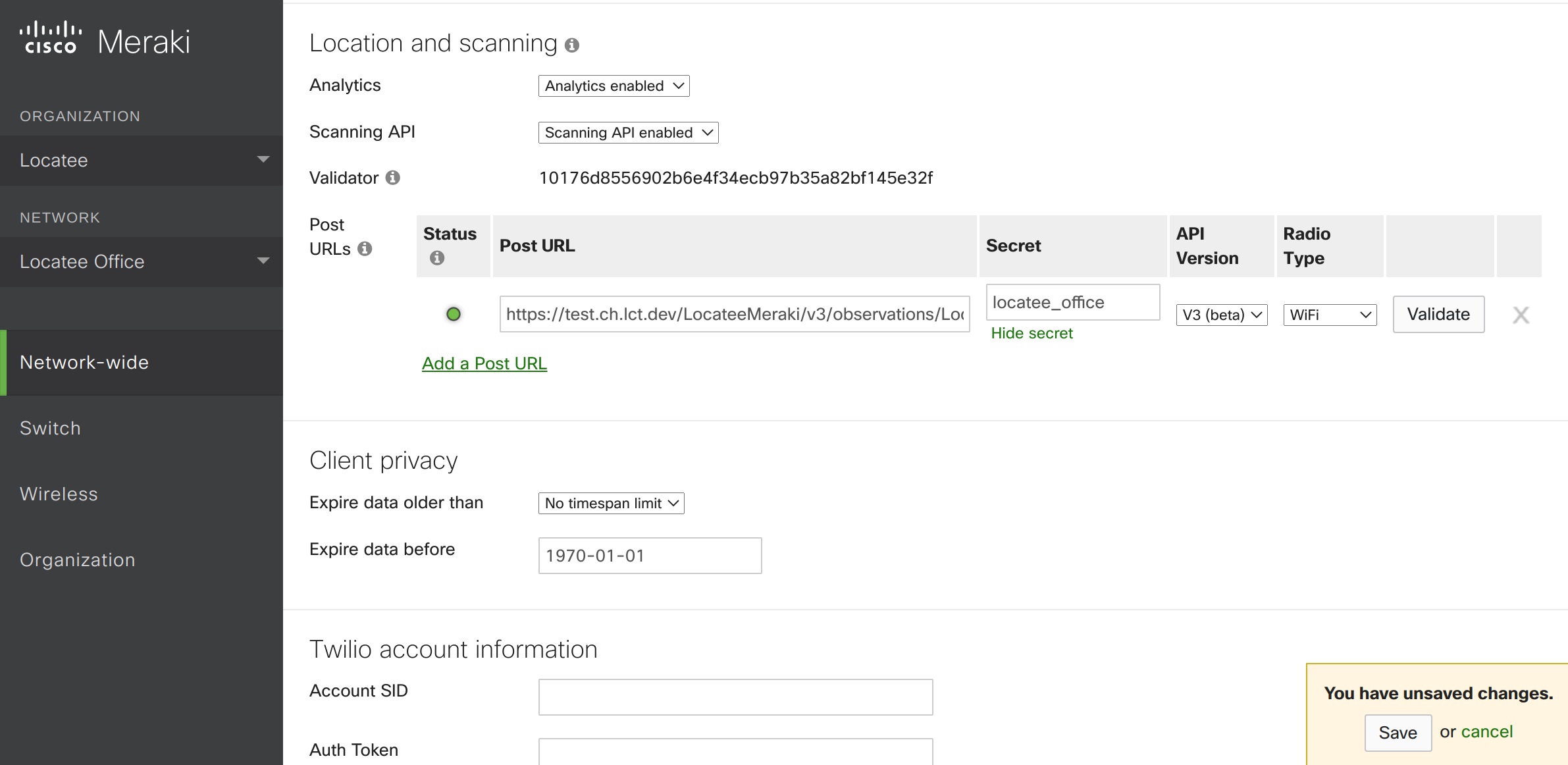
Enable Scanning API
- Set Analytics to Analytics enabled
- Set Scanning API to Scanning API enabled
- Click on Add a Post URL
- Populate the Post URLs section:
- Post URL:
<https://{customerLocateeHostname}/public/api/meraki/v3/observations/locatee-customername>where theorganizationNamemust match the organization this network belongs to. - Secret: random string of alphanumeric characters
- API Version: V3
- Radio Type: WIFI
- Post URL:
Locatee Analytics activation
- Log into Locatee Analytics
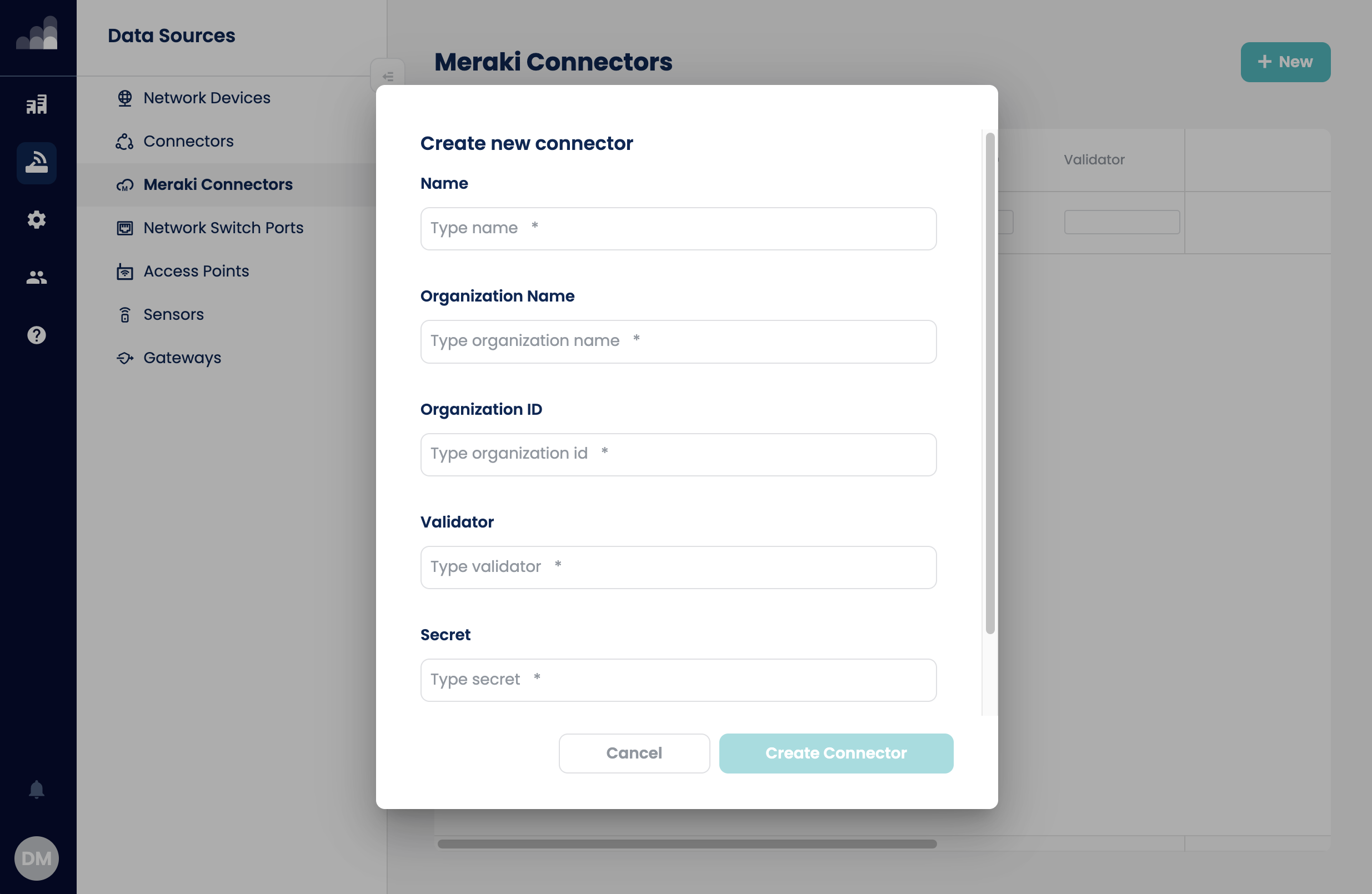
- Go to Admin > Data Sources > Meraki Connectors
- Click New to create a new connector and fill in the required fields:
- Name:
locatee-customername - Organization name:
locatee-customername - Validator: copied from Meraki Location and Scanning
- Secret: copied from Meraki Location and Scanning
- Gateway:
meraki-gateway
- Name:
- Click Create Connector
- Go back to Meraki Location and Scanning, then click Validate. A successful activation will show a green light in the Status column:
