

Prerequisites
Infrastructure configuration
Before kicking off the activation process, ensure that:- The Cisco WLC infrastructure is connected to Cisco Spaces
- Floor maps and access points are configured in Cisco Prime Infrastructure then imported into Cisco Spaces or
- Floor maps and access points are configured in Cisco DNA Center then synchronised in Cisco Spaces
Linking the location hierarchy
Locatee Analytics organises occupancy data into sites, buildings and floors. For correct occupancy reporting, Cisco Spaces location hierarchy needs to match with Locatee building hierarchy. See example below:- Cisco Spaces Building A > Locatee Building A
- Floor 1 > Floor 1
- Floor 2 > Floor 2
- Floor 3 > Floor 3
Cisco Spaces activation
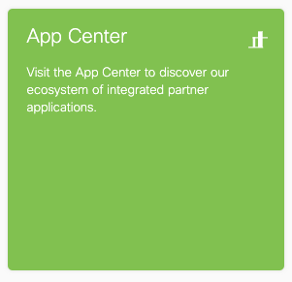
- Log into the Cisco Spaces Portal and go to the App Center:
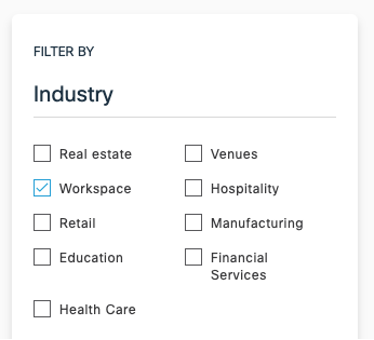
- Set the search filter to Industry - Workspace and select the Locatee Analytics app from the list:
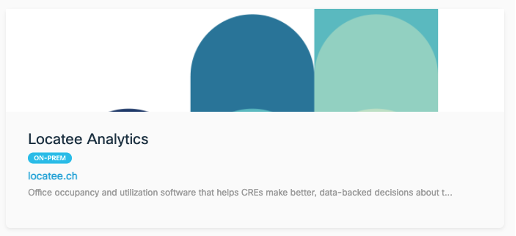
- Click Activate:

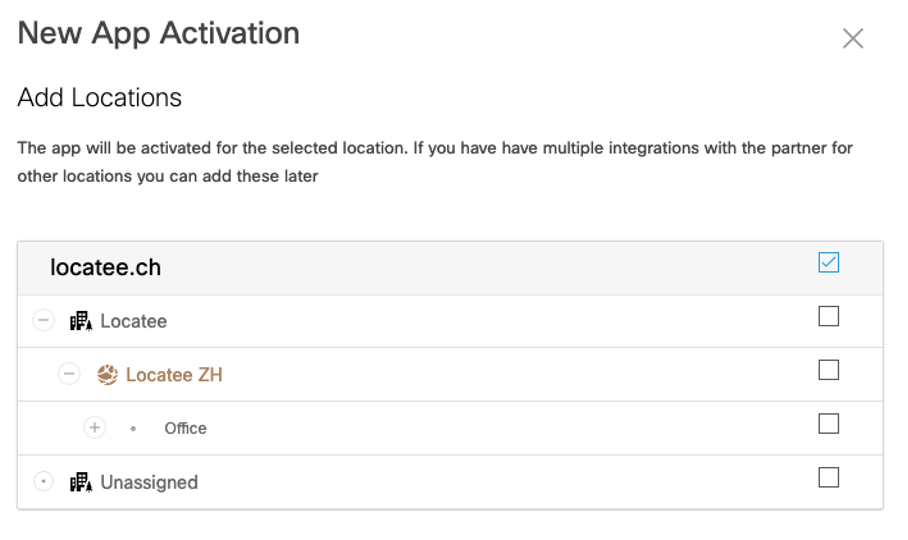
- Select the buildings which will be part of the Locatee Analytics integration:
- Click Generate Activation Key and copy the generated token.
📘 Activation key expiration The activation key expires in 60 minutes.
Locatee Analytics activation
- Log into Locatee Analytics
- Go to Admin > Data Sources > Gateways
- Click New to create a new gateway
- Set the Name to ciscospaces-gateway
- Set the Gateway Type to Spaces
- Click Create Gateway
- Go to Cisco Spaces and click on New activation
- Paste the token obtained from the Cisco Spaces Portal
- Click Activate